Vault
The Vault is Synapse's built-in file storage — a persistent, shared file system where you create and manage documents that agents can read and write across sessions. Use it to maintain knowledge bases, store structured data, pass context between agents, and inject reference material directly into agent system prompts.
Vault files live in DATA_DIR/vault/ on the host and are accessible via Settings → Vault.
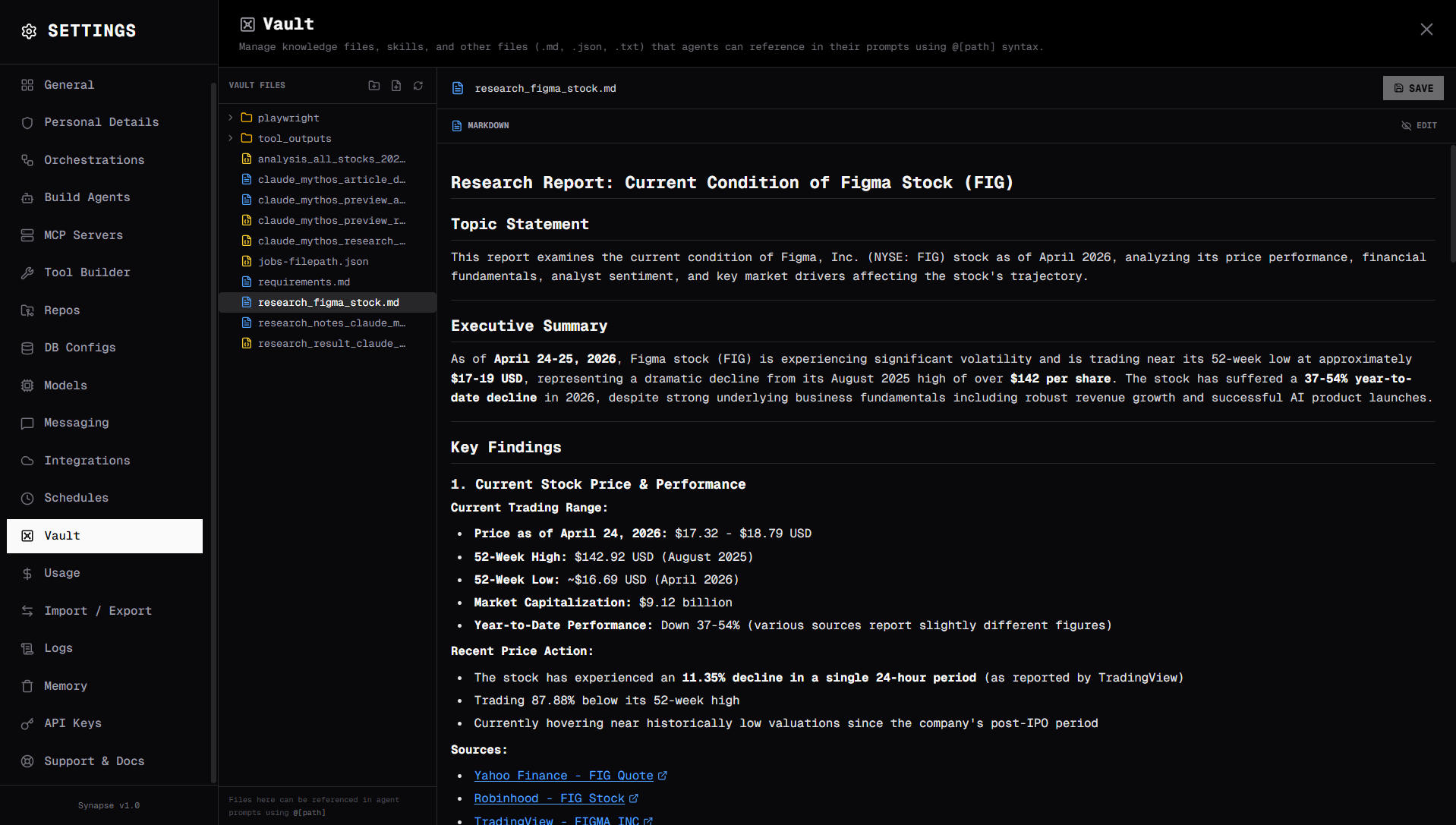
Opening the Vault
- Click Settings (top right)
- Select Vault in the left sidebar
The Vault opens in a two-panel layout: a file tree on the left and an inline editor on the right.
Creating files and folders
New folder
- Click the folder+ icon in the Vault toolbar (top of the file tree)
- Enter a folder name and click Create
You can also hover over any existing folder in the tree and click the file+ icon that appears to create a file directly inside it.
New file
- Click the file+ icon in the toolbar
- Choose a file type:
- Markdown (
.md) — for prose, notes, and context documents. Includes a live preview toggle. - JSON (
.json) — for structured data and configuration. Includes inline validation. - Text (
.txt) — for plain unformatted text.
- Markdown (
- Enter a file name (the extension is appended automatically if omitted)
- Click Create — the file opens immediately in the editor
Nested files
To create a file inside an existing folder, hover the folder row and click the file+ icon that appears on the right. The new file dialog shows the target location.
Editing files
Select any file in the tree to open it in the editor panel.
Markdown editor
.md files open with a code editor by default. Click PREVIEW in the top-right corner of the editor to toggle a rendered view of the markdown. Click EDIT to return to the raw editor.
JSON editor
.json files include live syntax validation. A red error bar appears at the bottom of the editor if the JSON is malformed, showing the exact parse error. The Save button stays active so you can continue editing before fixing the error.
Plain text editor
.txt files open in a minimal textarea with no formatting or validation.
Saving
Click Save (or the keyboard shortcut Ctrl+S / Cmd+S) to persist changes. The header shows unsaved changes when the file has been modified. After a successful save the button briefly turns green and shows SAVED.
Deleting files and folders
Hover any file or folder row in the tree to reveal the trash icon on the right. Click it and confirm the deletion prompt. Deleting a folder removes all its contents — this cannot be undone.
Referencing vault files in agents
In system prompts
Reference vault files in any agent system prompt using @[path] syntax:
You are a support assistant.

Product documentation:
@[context/products.md]

Known issues:
@[context/known-issues.md]
The files are injected at the start of each session. Updating the vault file takes effect on the next session automatically.
@-mention autocomplete
When writing a system prompt in the agent editor, type @ to open the vault file picker:
- Start typing to filter by filename or path
- Use
↑/↓to navigate - Press
EnterorTabto insert the reference - Press
Escto dismiss
The inserted reference looks like @[folder/file.md].
Agent tools
Agents with the Vault tool enabled can read, write, and patch files at runtime:
| Tool | Description |
|---|---|
vault_read | Read the content of a file |
vault_write | Write or overwrite a file |
vault_patch | Apply a targeted text find-replace or JSON deep merge |
vault_list | List files (with optional path filter) |
vault_delete | Delete a file |
Example — agent accumulating research:
Save the findings to vault/research/2025-q1.md
Example — two agents collaborating:
Agent A writes vault/reports/draft.md
Agent B reads it, reviews it, and writes feedback to vault/reports/feedback.md
Agent A reads the feedback and revises
File format reference
| Extension | Icon color | Editor features |
|---|---|---|
.md | Blue | Edit + rendered preview, monospace input |
.json | Amber | Live JSON validation, parse error display |
.txt | Gray | Plain textarea |
What's stored
Vault files are not included in Import/Export bundles — bundles contain agent and orchestration configuration only. Back up vault files separately by copying DATA_DIR/vault/ or committing it to version control.
# Back up vault files
cp -r /data/vault ./vault-backup-$(date +%F)

# Or commit to git
git add vault/
git commit -m "chore: vault snapshot $(date +%F)"
Configuration
| Setting | Default | Description |
|---|---|---|
vault_enabled | true | Enable or disable vault tools for agents |
vault_threshold | 100000 | Token count beyond which vault injections are summarized or trimmed |
When a conversation is short, @[path] injections are always included in full. When the token count exceeds vault_threshold, Synapse trims older context to make room for the vault content.