Messaging
Synapse can connect to messaging platforms so agents can receive messages and send responses directly in your team's chat tools. Set up a channel once and users can chat with your agents without opening the Synapse UI.
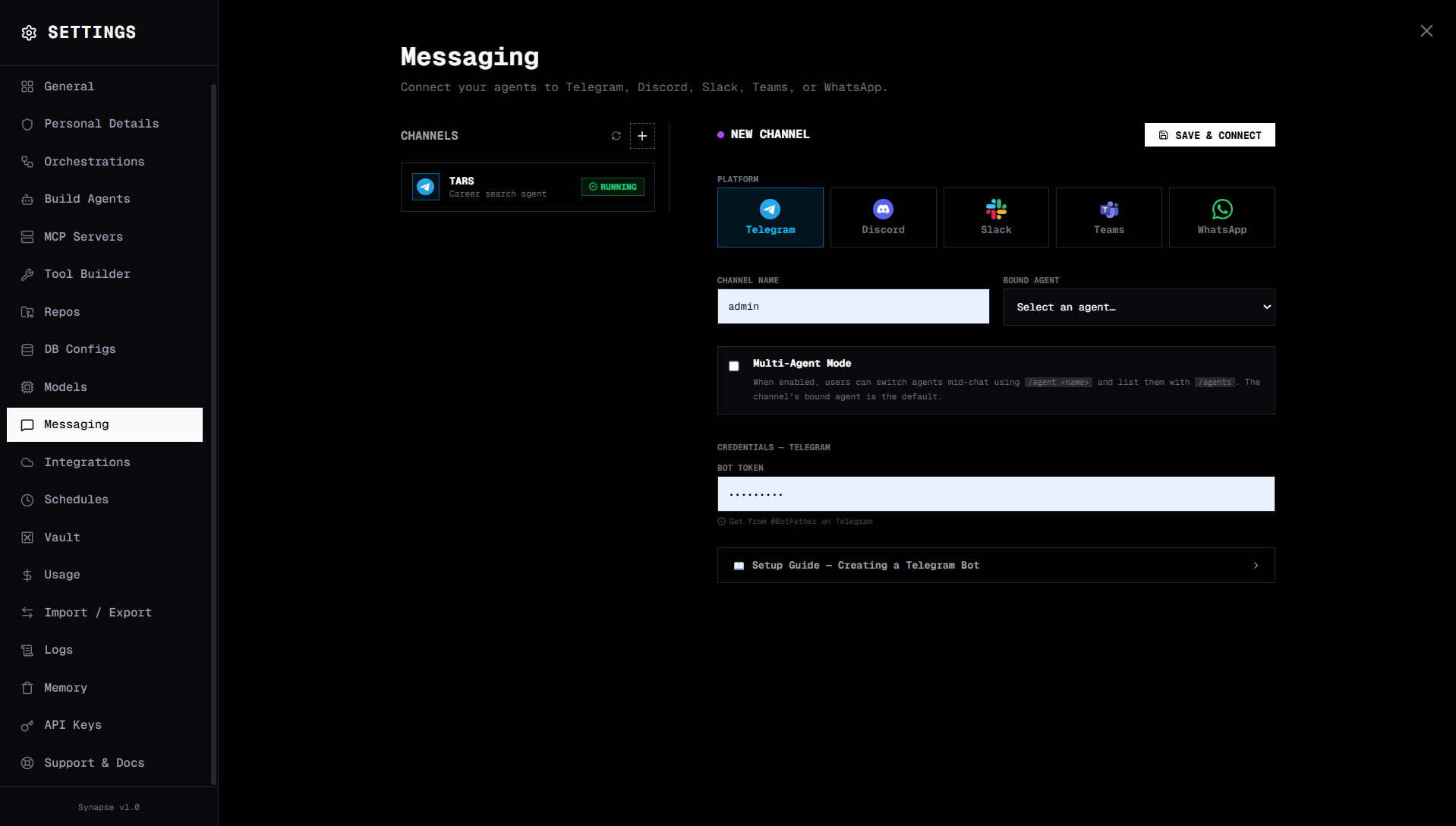
Supported platforms
| Platform | Type | Auth |
|---|---|---|
| Telegram | Bot polling | Bot token |
| Discord | Bot polling | Bot token + App ID |
| Slack | Event subscription | Bot token + signing secret |
| Microsoft Teams | Webhook (Bot Framework) | Azure app credentials |
| Webhook (Meta Cloud API) | Access token + verify token |
Enabling messaging
Set messaging_enabled: true in settings (this is the default). Without it, the messaging adapters won't start.
Configuring a channel
Go to Settings → Messaging → Add Channel.
Fields
| Field | Description |
|---|---|
| Platform | telegram, discord, slack, teams, whatsapp |
| Agent | Which agent responds to messages in this channel |
| Credentials | Platform-specific tokens and secrets (see below) |
| Enabled | Start/stop the adapter |
Telegram
- Create a bot via @BotFather →
/newbot - Copy the bot token
- In Synapse, add a Telegram channel with the bot token
- Enable the channel → the bot comes online
- Send a message to your bot — the assigned agent responds
Credentials:
| Field | Description |
|---|---|
bot_token | Token from BotFather (format: 123456789:ABCdef...) |
Discord
- Go to discord.com/developers → New Application
- Create a bot, enable Message Content Intent
- Invite the bot to your server with
bot+applications.commandsscopes - Copy the bot token and Application ID
Credentials:
| Field | Description |
|---|---|
bot_token | Bot token from Discord Developer Portal |
application_id | Application (client) ID |
guild_id | Optional — restrict to a specific server |
channel_id | Optional — restrict to a specific channel |
Slack
- Create a Slack App at api.slack.com/apps
- Enable Event Subscriptions and subscribe to
message.channels,app_mention - Add OAuth scopes:
channels:read,chat:write,app_mentions:read - Install the app to your workspace
Credentials:
| Field | Description |
|---|---|
bot_token | OAuth Bot Token (starts with xoxb-) |
signing_secret | App Signing Secret (from App Credentials) |
Microsoft Teams
Teams uses the Bot Framework webhook model. You need an Azure Bot registration.
- Create an Azure Bot in the Azure Portal
- Set the messaging endpoint to:
https://your-synapse-host/api/messaging/teams/webhook/{channel_id} - Enable the Microsoft Teams channel
- Copy the App ID and client secret
Credentials:
| Field | Description |
|---|---|
app_id | Azure Bot App ID |
app_secret | Azure Bot client secret |
tenant_id | Azure Tenant ID |
Teams requires Synapse to be publicly accessible via HTTPS for the webhook to work.
WhatsApp
Uses the Meta Cloud API (WhatsApp Business).
- Create a Meta Developer App at developers.facebook.com
- Add the WhatsApp product
- Set the webhook URL to:
https://your-synapse-host/api/messaging/whatsapp/webhook/{channel_id} - Verify the webhook using the verify token
Credentials:
| Field | Description |
|---|---|
access_token | Meta access token |
verify_token | Your chosen webhook verify token |
phone_number_id | WhatsApp phone number ID |
How agents respond
When a user sends a message in a connected channel, Synapse:
- Identifies the message as addressed to the bot
- Routes it to the assigned agent
- Runs the ReAct loop
- Sends the response back to the same channel/user
Session continuity is maintained per-user — each user gets a separate session ID, so agents remember context across messages.
Testing a channel
After enabling a channel, click Test in Settings → Messaging. For Telegram and Discord, this verifies the bot token is valid. For Teams and WhatsApp, this validates the webhook credential fields.