A support bot on your site
Put an agent that answers from your documents on your own website with one script tag, and decide exactly what strangers can make it do.
Harbor & Pine's stockists ask the same questions every week: when will my order ship, what are your payment terms, what happens if you are late. This recipe puts the Order desk on the shop's website, answering from the compliance guides, in a chat panel any visitor can open.
It combines three things you may already have:
- An agent to answer — see Agents and skills.
- A knowledge base it answers from, open to visitors — see Knowledge bases.
- A widget that puts it on your pages.
Widgets come with SynapseOrch Cloud's Solo plan and above.
1. Choose what visitors may search
A visitor is a stranger. They can search only the knowledge bases you open to them, and only through the agent.
Open Knowledge, select the base, press Settings and turn on Visitors may search it. Harbor & Pine opens Compliance guides — public FTC documents — and leaves Suppliers & invoices closed: it is in the Order desk's knowledge for the staff who chat with it, and no visitor ever gets a passage from it.
2. Make the widget
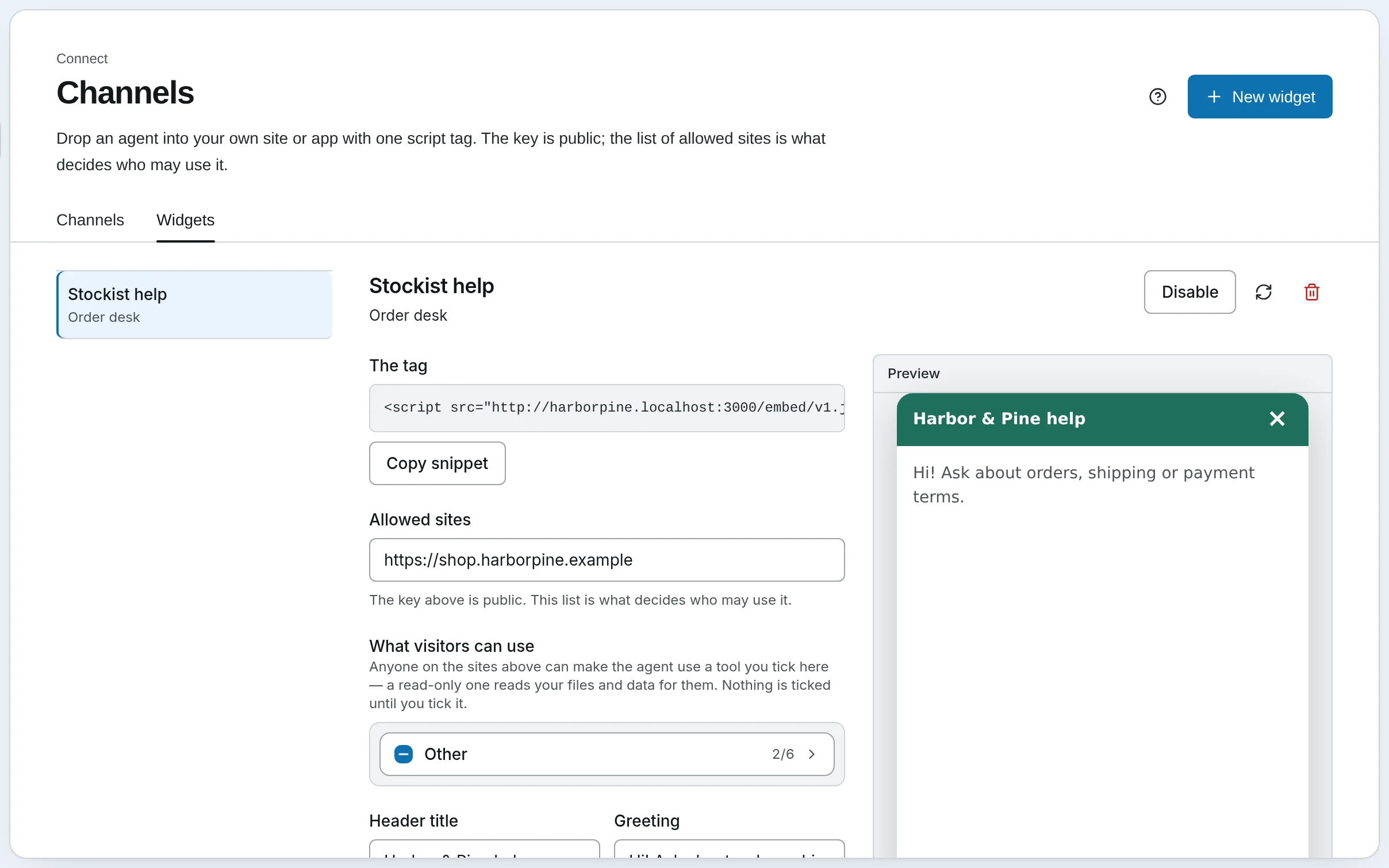
Pick the agent and the sites
Open Channels › Widgets and press New widget. Name it — Stockist help — choose the Agent, and list the Allowed sites that may show it: https://shop.harborpine.example. Press Create.
The key in the tag is public: it is in your page's HTML for anyone to copy. The allowed sites are what decide who may use it — a browser refuses to show the widget on any other site.
Tick what visitors can use
Under What visitors can use, nothing is ticked to start: a visitor's turn gets none of the agent's tools until you tick them. Anyone on your site can make the agent use a ticked tool, so tick only what you would let a stranger do. Each tool says what it does — Reads your data, Changes data, Reaches outside.
For a support bot answering from documents, tick search_knowledge and read_knowledge — they reach only the bases open to visitors — and nothing else. A tool whose tool policy would ask first is refused for a visitor anyway, since nobody on your site can approve it.
Make it look like your site
Set the Header title (Harbor & Pine help), the greeting (Hi! Ask about orders, shipping or payment terms.), the launcher's label, the accent colour and the theme, watching Preview as you go. Set Messages per day — 500 by default — to the most you are willing to pay for. Press Save changes.
Put it on your pages
Press Copy snippet and paste the tag into the HTML of each allowed site, before </body>:
<script src="https://harborpine.synapseorch.com/embed/v1.js" data-key="pk_…" async></script>The launcher appears at the bottom right of the page. The chat runs in its own frame, so neither your page's scripts nor its styles can reach it.
3. Try it as a visitor
Open your site and ask what a stockist would: Do you ship within 30 days? The Order desk searches the compliance guides and answers from them. A visitor's answer carries no [K#] labels; your own staff, chatting with the same agent in the app, see the sources.
Things a visitor never gets:
- Your workspace. A visitor has a session and a token for that one widget, and nothing else.
- The agent's memory. A visitor's turn neither reads nor writes it.
- Errors about your workspace. If the model fails, the visitor sees Something went wrong. Please try again.
Keep it healthy
- Score the answers. Put the same questions in a golden set on a workflow that answers from the same base, and run it after you change the agent or the base.
- Watch the cap. Messages per day is the ceiling on what the widget can spend in a day; raise it when real traffic needs more.
- A key misused from a site you allow? Issue a new key, beside Disable, replaces the key and stops the old snippet; paste the new one. Disable takes the widget down without deleting it.
Self-hosted
Widgets live under Channels › Widgets here too, with the same fields. The tag points at your own install's address, which visitors' browsers must be able to reach.
Go further
- Chat Widget — the frame, the allow-list, rate limits and every appearance option
- Agents, Chat and Workflows — what visitors can search, and what they see
Ingest from a workflow
Have a workflow file what it produces in a knowledge base, with an Ingest step: shape the records, name their ids so a re-run replaces rather than repeats, carry metadata to search by, and know when they become searchable.
Schedules and channels
Work that starts without anyone pressing Run: a workflow every Monday morning, an agent that answers in Telegram (and in Slack or Discord when self-hosted), and a human step that asks its question in a channel.