Set up the workspace
Choose the models your agents use, set the values tools and prompts share, and decide which tool calls need a yes first.
Three settings shape everything you build afterwards: which model an agent uses when it names none, the shared values your tools and prompts read, and which tool calls run without asking. Each takes a minute. Settings is at the foot of the menu.
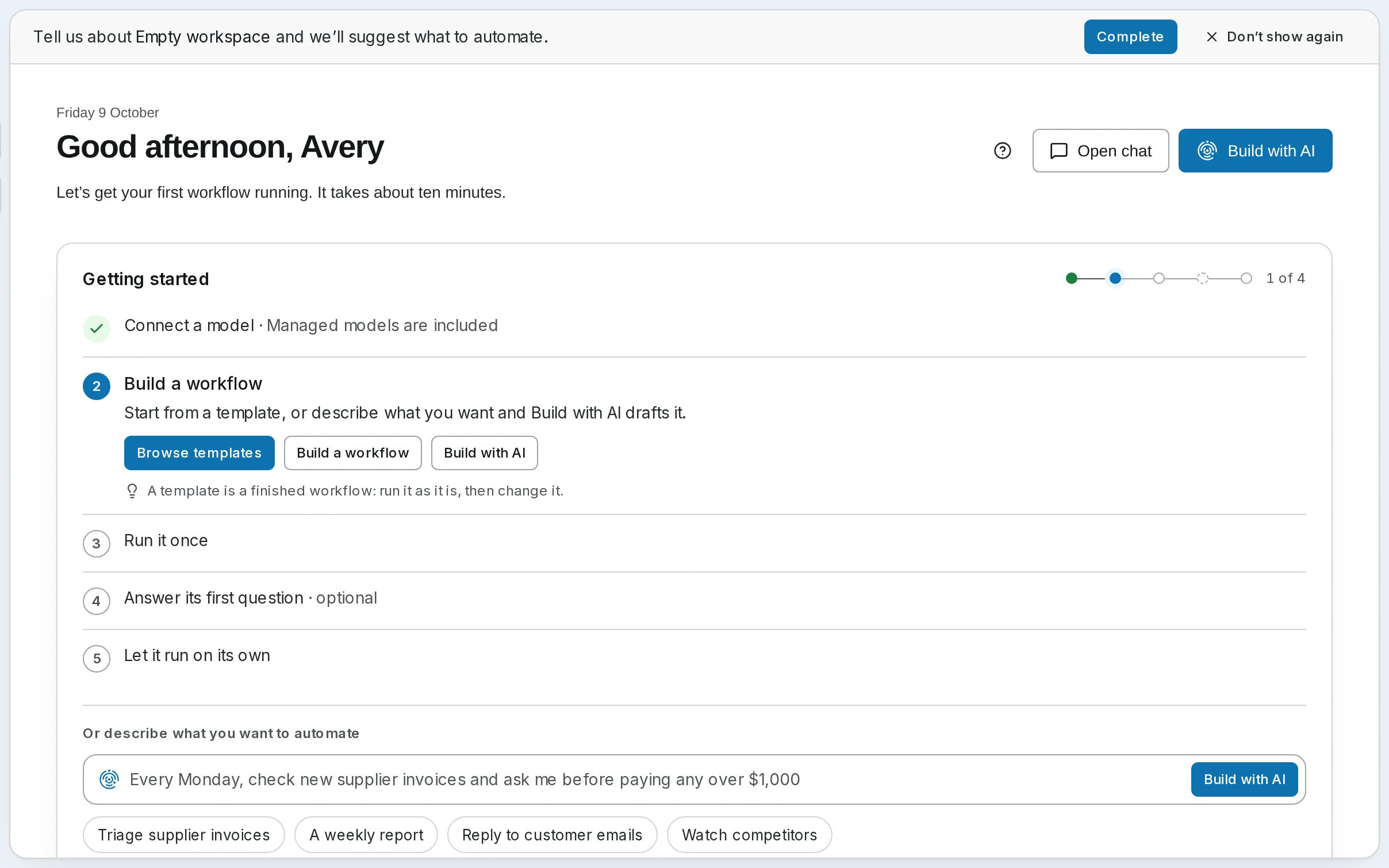
A new workspace's Home opens on Getting started, the path to a first workflow: connect a model, build a workflow from a template or with Synapse AI, run it once, answer its first question, and let it run on its own. The settings below are the ones worth a minute before that first run.
Choose the models
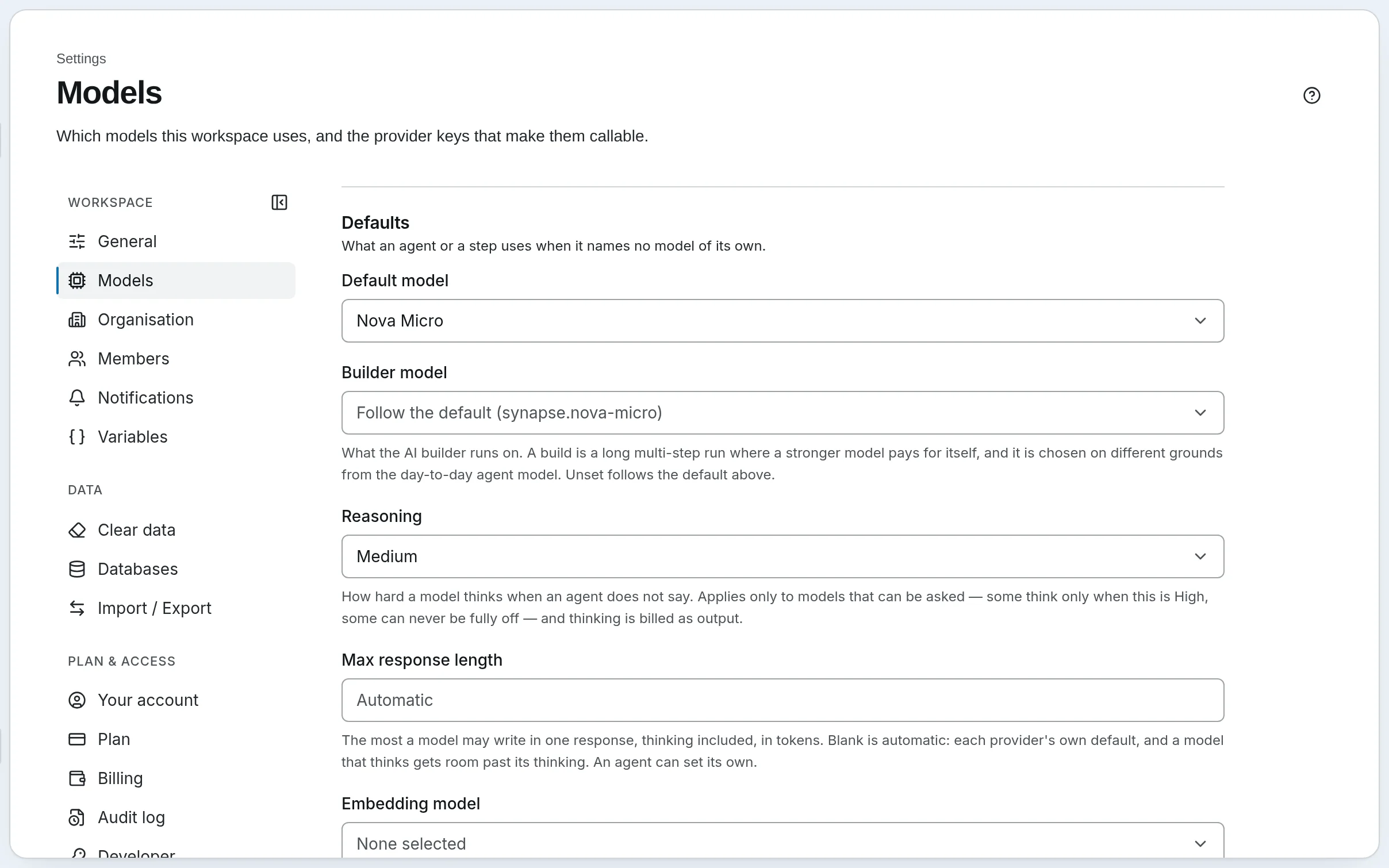
Pick a default model
Open Settings → Models. Under Defaults, choose the Default model: every agent and step that names no model of its own uses it. Harbor & Pine uses Nova Micro, a cheap SynapseOrch model, and gives the two agents that answer people Nova Lite.
Decide on the rest, or leave them
- Builder model — what Synapse AI runs on. A build is a long multi-step run, so a stronger model can pay for itself here even when your agents run on a cheap one. Unset, it follows the default.
- Reasoning — how hard a model thinks when an agent does not say. Thinking is billed as output.
- Embedding model — what turns text into vectors, for searching by meaning: code search and each workflow step's semantic cache use it. A knowledge base names its own in its settings; see Embedding models.
Press Save changes.
Bring your own keys, if you want to
SynapseOrch models need no key: they are paid per token from the model wallet. To use your own account with a provider instead, open it under Providers, paste the key into API key and press Save. Its models then appear in every model picker, billed by the provider, not the wallet. You can mix both: one agent on a SynapseOrch model, another on your key.
Self-hosted
There are no SynapseOrch models: every model comes from a provider you connect. Under Settings → Models → Providers, open one and paste its key, or point it at Ollama for models on your own machine. A provider that shows a model count is ready. Then choose the Default Model and press Save Changes. If you chose an AI while installing, this is already done.
Set values tools and prompts share
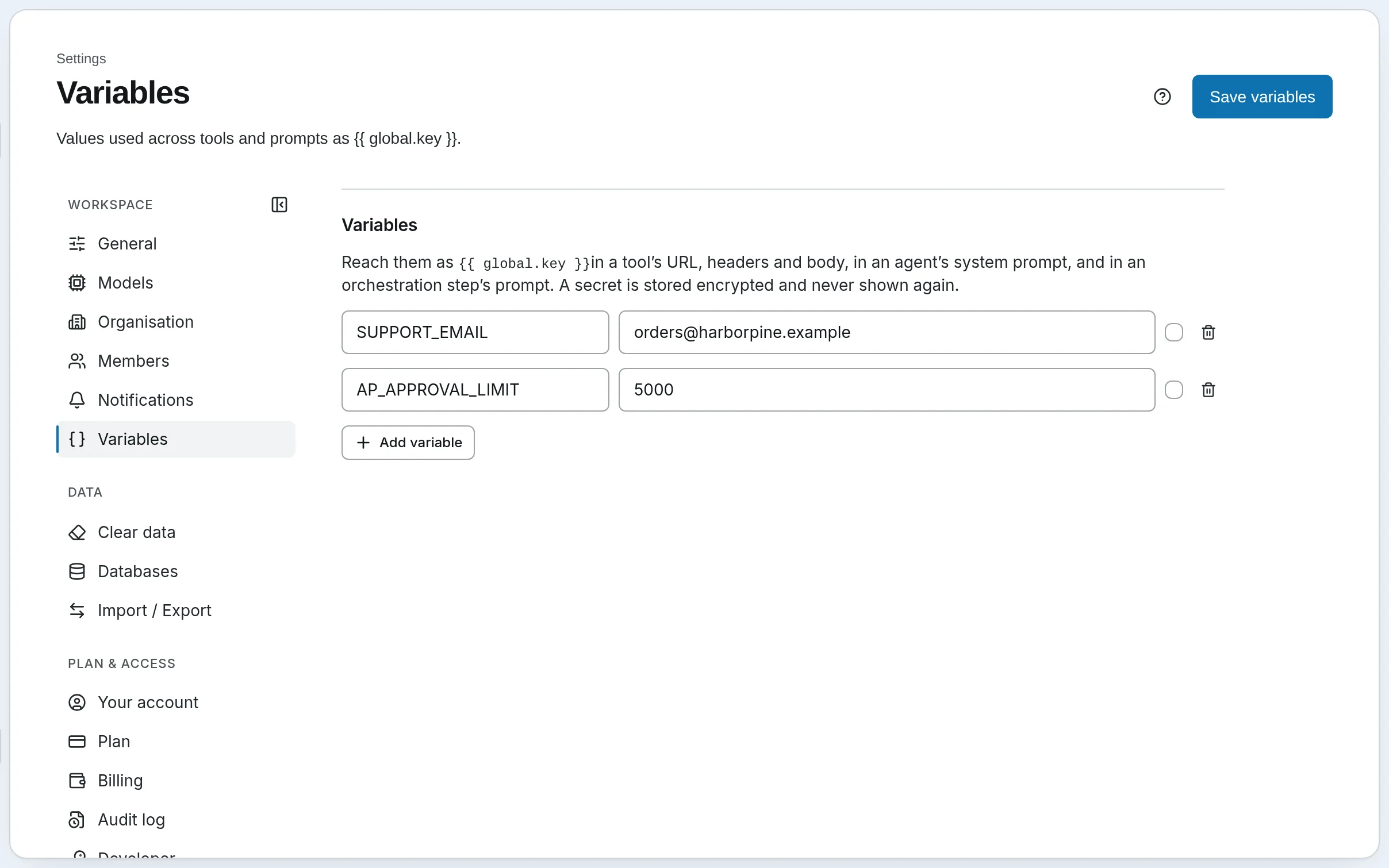
A variable is a value you set once and use everywhere as {{ global.key }}: in a tool's URL, headers or body, an agent's system prompt, or a step's prompt. Change it here and everything that reads it follows.
Add the variable
Open Settings → Variables and press Add variable. Give it a name of letters, numbers, hyphens and underscores, not starting with a digit, and a value. Harbor & Pine keeps its approval limit, AP_APPROVAL_LIMIT = 5000, and the address stockists write to, SUPPORT_EMAIL.
Mark credentials secret
For an API token or a password, tick the box beside the value. A secret is stored encrypted and never shown again: once saved it reads Secret set, and Replace gives it a new value.
Save, then use it
Press Save variables. In a prompt, {{ global.SUPPORT_EMAIL }} becomes orders@harborpine.example when the agent or step runs.
Self-hosted
Variables come back as plain text on a self-hosted install: keep secrets in a provider's key field or a tool's own settings, not here. See Variables.
Decide which tool calls need a yes
Some tools act on the world: they send an email, write a file, call an outside API. Under Settings → General → Tool policy, choose for each kind of tool whether a call runs (Allow), waits for a person to approve it (Ask first) or never runs (Block). An agent can set its own policy in its editor, which overrides the workspace's for that agent. A call waiting for a yes appears in chat, on the run's page and in notifications. See Tool Policy.
On the same page, keep Cache the prompt prefix on: when a conversation sends the same instructions turn after turn, the provider charges the repeated part at a lower rate.
The rest of Settings
| Page | What it is for |
|---|---|
| Organisation | The workspace's name, and the contact details agents use when they act for it |
| Members, Notifications, Sessions | Who is in the workspace and what they can do: Members and roles |
| Databases | Databases agents may query with the SQL tools, read-only unless you allow writes |
| Import / Export | Move workflows, agents, tools and apps between workspaces as one file: Import & Export |
| Clear data | Delete chat history, run history, memory or usage for good. Only the owner can |
| Plan, Billing | What the workspace pays: The wallet and plans |
| Developer | API keys and examples: The public API |
Every field is described in the Settings Reference.
Next
Make an agent that uses these models.
Install on your computer
Install self-hosted SynapseOrch on macOS, Linux or Windows with one command, or run it in Docker — then open it for the first time, choose an AI, and keep it up to date.
Agents and skills
Make an agent: its model, its instructions and the tools it may use. Then give it a skill, a set of instructions it loads only when a task needs them.