How the pieces fit
Agents, tools, workflows and runs: what each one is, how they connect, and where to find them in the app.
SynapseOrch has four ideas, and everything in the app is one of them or a way to start one:
- An agent is a model with instructions and a set of tools. Ask it something and it works out the steps itself, calling tools until it has an answer.
- Tools are what an agent can reach: HTTP endpoints and Python code you write, apps you connect (each an MCP server), files in the Vault, and knowledge bases it can search.
- A workflow fixes the path. It is a set of steps in an order you drew, each doing one thing — search, call an agent, ask a person, write with a model — and passing what it made to the next through shared state.
- A run is one time a workflow ran: what each step did, the state it left, what it cost and why it stopped.
Chat, a schedule, a messaging channel, the website widget or the API starts the work. A conversation goes to an agent; a schedule and the API can start either an agent or a workflow. A workflow's Agent step hands one step of the job to an agent, so the two combine: the workflow decides the order, and the agent decides how to do its part. Every workflow run is kept, and you read it back under Runs, on its tabs Runs, Logs, Evals and Usage.
Agents are flexible and workflows are predictable. Use an agent on its own when the question decides the steps (a stockist asking anything about their order). Use a workflow when the job is the same every time (check an invoice, ask for approval over a limit, write the payment note), so that every run takes the same path and costs about the same.
The example in these guides
The guides build on one workspace, Harbor & Pine Supply, a made-up wholesale supplier. You will meet:
| In Harbor & Pine | Guide | |
|---|---|---|
| Agents | Order desk answers stockists' questions from the compliance guides and the supplier records; Supplier analyst scores suppliers; Invoice clerk reads invoices | Agents and skills |
| Tools | net_terms_due_date, a Python tool that works out when an invoice is due | Tools |
| Workflows | Invoice triage, Weekly supplier review, Answer a customer question, Log new orders | Workflows |
| Knowledge bases | Compliance guides (two FTC guides and an FTC web page), Suppliers & invoices (records), Order log | Knowledge bases |
| Around them | a schedule, a support widget, a rubric that scores answers, an API key | Recipes |
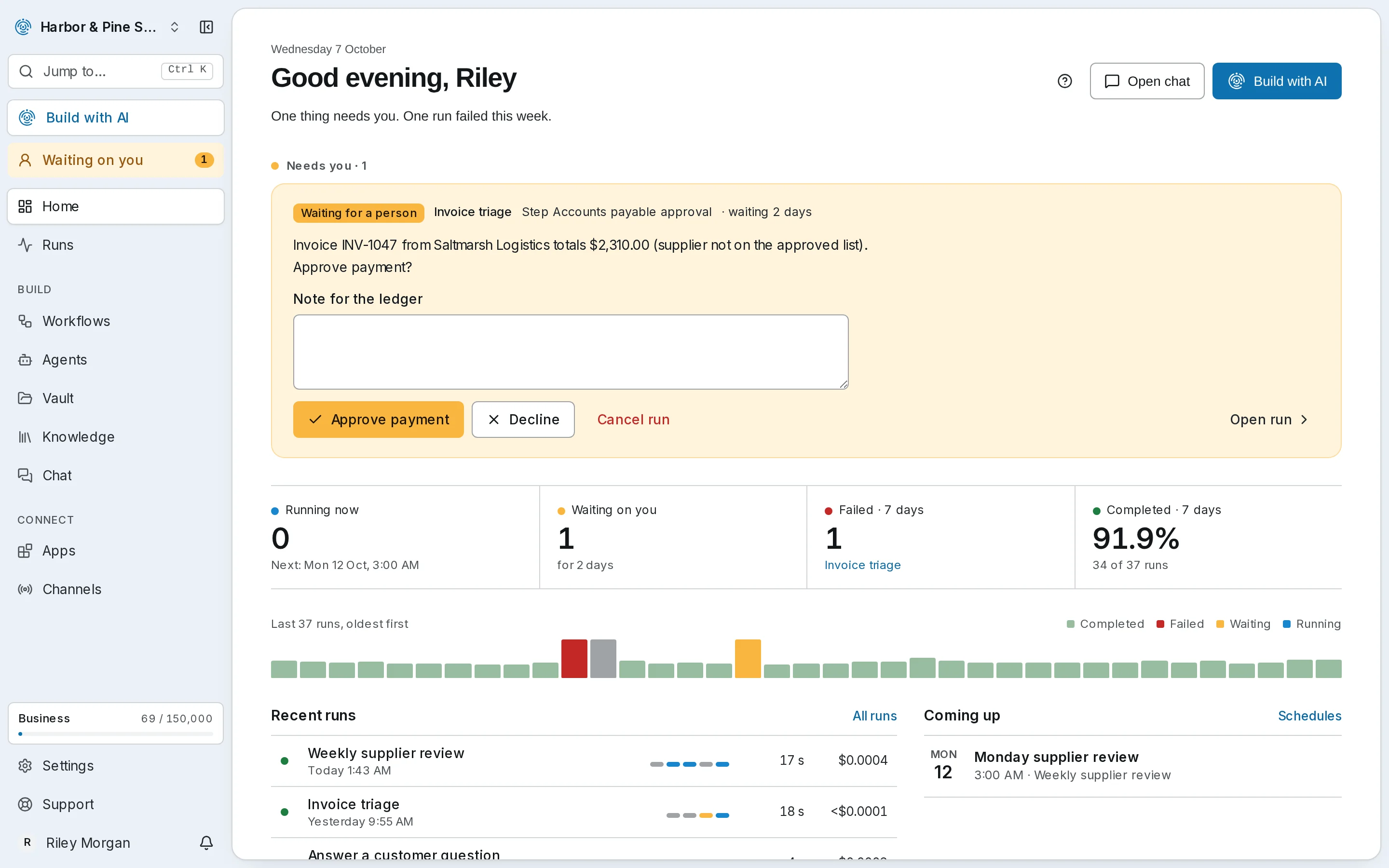
Getting around
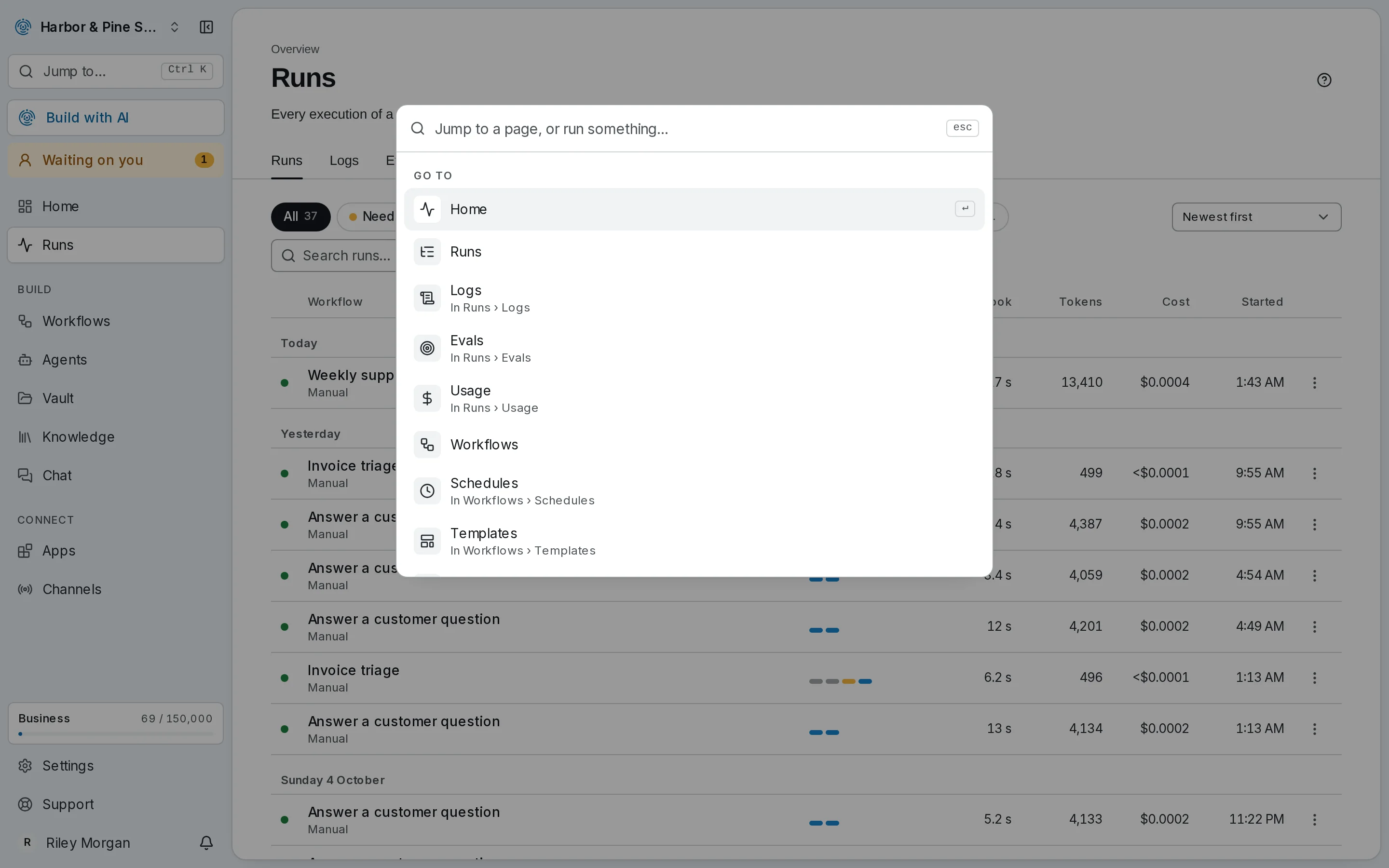
The menu on the left holds every page. Pages that belong together are tabs under one item:
- Home and Runs — what needs you, what is running, what ran and what it cost. Home puts what Needs you first, each a click from its run; Runs holds Logs, Evals and Usage as tabs.
- Build — Workflows (with Schedules and Templates), Agents (with Skills), the Vault, Knowledge and Chat: where you make things and run them.
- Connect — Apps (with Tools) and Channels (with Widgets): what agents can call, and where they answer.
Jump to…, or Ctrl+K (⌘K on a Mac), goes to any page or tab by name. Synapse AI, under it, opens Synapse AI from any page: ask about the workspace, or describe a workflow and have it drawn for you. While a run or a tool call waits for your answer, Waiting on you appears below it and answers them in place. Settings, Support and your account are at the foot of the menu, with the bell for notifications beside your name; the workspace's name at the top switches workspace.
Every page has a ? at the top right of its header (Help for this page). It explains the page in a few steps and links to the guide that covers it.
Self-hosted
A self-hosted install has the same menu. Knowledge appears once you turn it on, and at the foot Settings sits beside a More menu (the theme, the docs, the changelog) and the bell; help and the docs are also under Settings → Help & docs.
Next
- Set up the workspace: the models it uses and the values its tools share.
- Make an agent, and give it tools.
- Build your first workflow, end to end.
Guides
Walkthroughs that build real things, step by step, on one example workspace: agents, workflows, knowledge bases, and the ways they combine.
Install on your computer
Install self-hosted SynapseOrch on macOS, Linux or Windows with one command, or run it in Docker — then open it for the first time, choose an AI, and keep it up to date.