Runs and what they cost
Follow a run while it works, answer one waiting for a person, find out why one failed, and read what each run and model call cost.
Every time a workflow runs, SynapseOrch keeps the run: each step's output, the shared state it left, the exact prompts the models were sent, and what it cost. This guide reads Harbor & Pine's runs — one that finished, one waiting for a person, and one that failed — and then where the money went.
Find a run
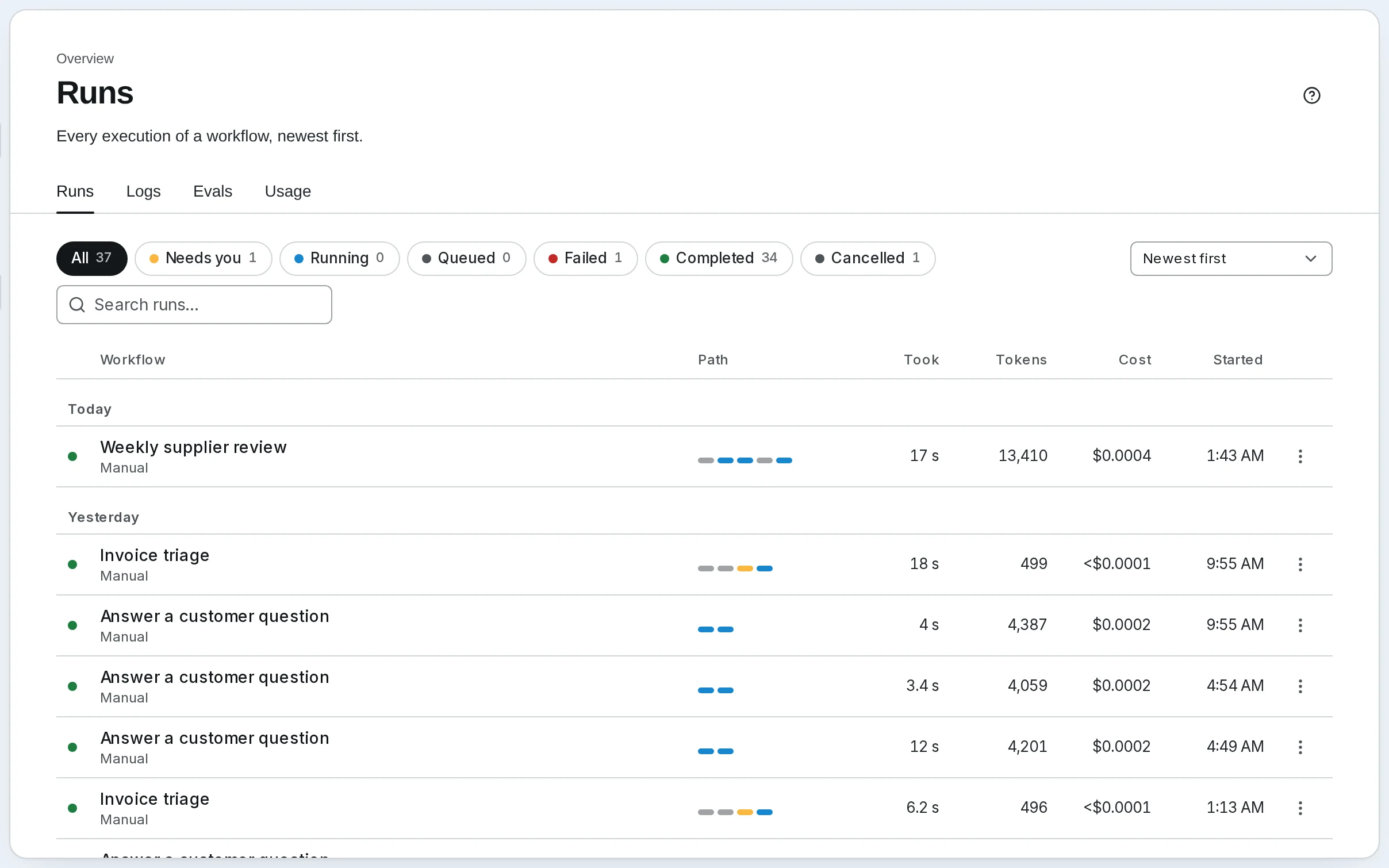
Runs lists every workflow run, newest first and grouped by day, including the ones a schedule or the API started. Pick Needs you, Running, Queued, Failed, Completed or Cancelled at the top to show only those runs, and Search runs… to find one by its workflow's name or its run ID. A row's menu stops a run, replays a failed one, or copies its ID. Click a run to open it.
Home puts the ones that need you first: Needs you, answered right there, and Needs attention, with Inspect.
Read a run
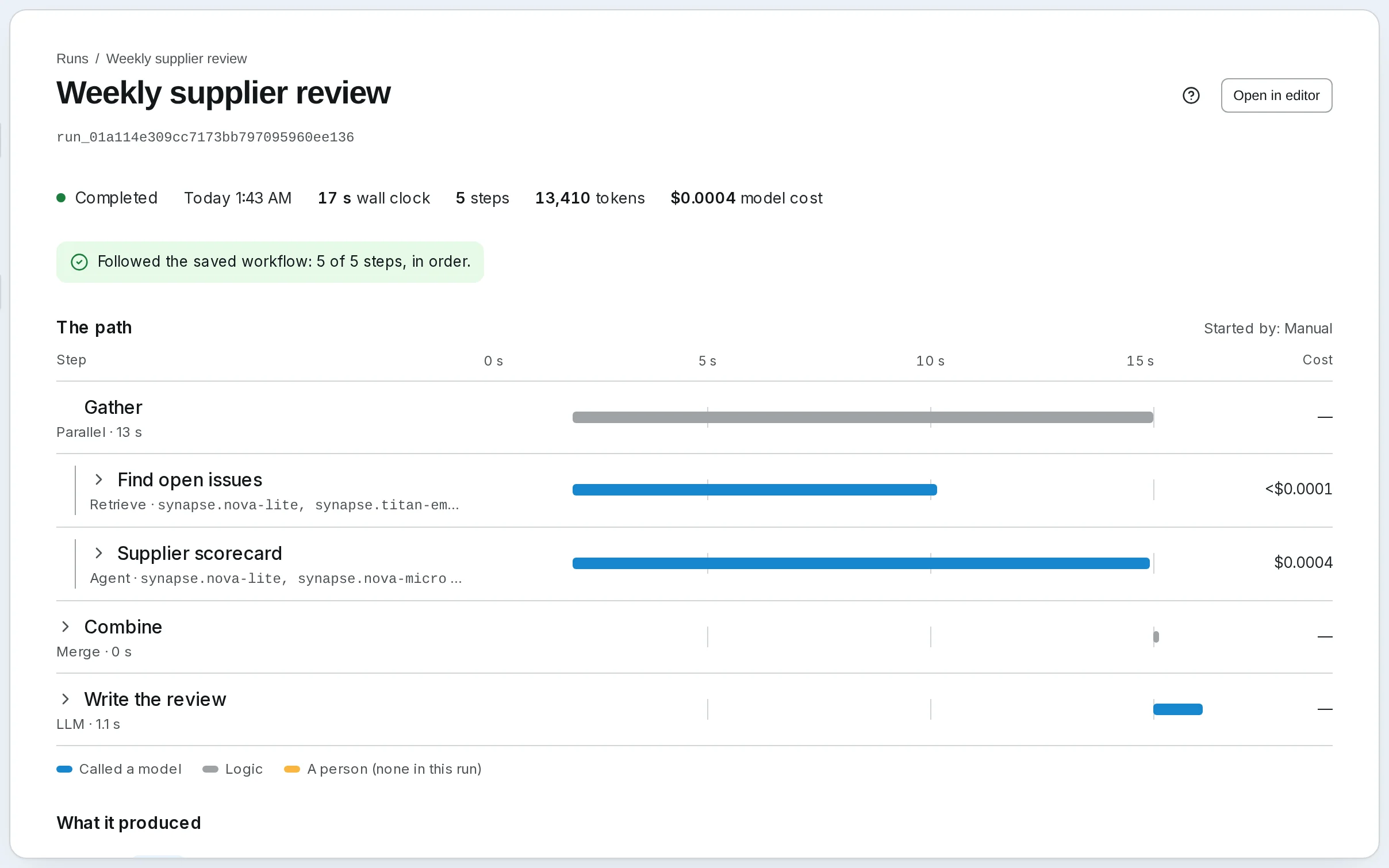
A run's page shows how long it took, its tokens and its model cost across the top. Below them:
- The path — one row per step, with its type, status, cost and time, and what started the run. Open a step for what it wrote, the models it called and the tools it used.
- What it produced — the run's result.
- Activity — the run's events as they happen; it streams while the run works.
- Shared state — every key the run wrote, as the run left it.
- Raw event log and Full transcript — every event, and exactly what each model was sent and answered. When an answer is wrong, the transcript shows whether the model was given the wrong thing or did the wrong thing with the right one.
The time shown is wall clock. Time waiting for a person, or in line for a slot, is not charged.
Answer a run waiting for a person
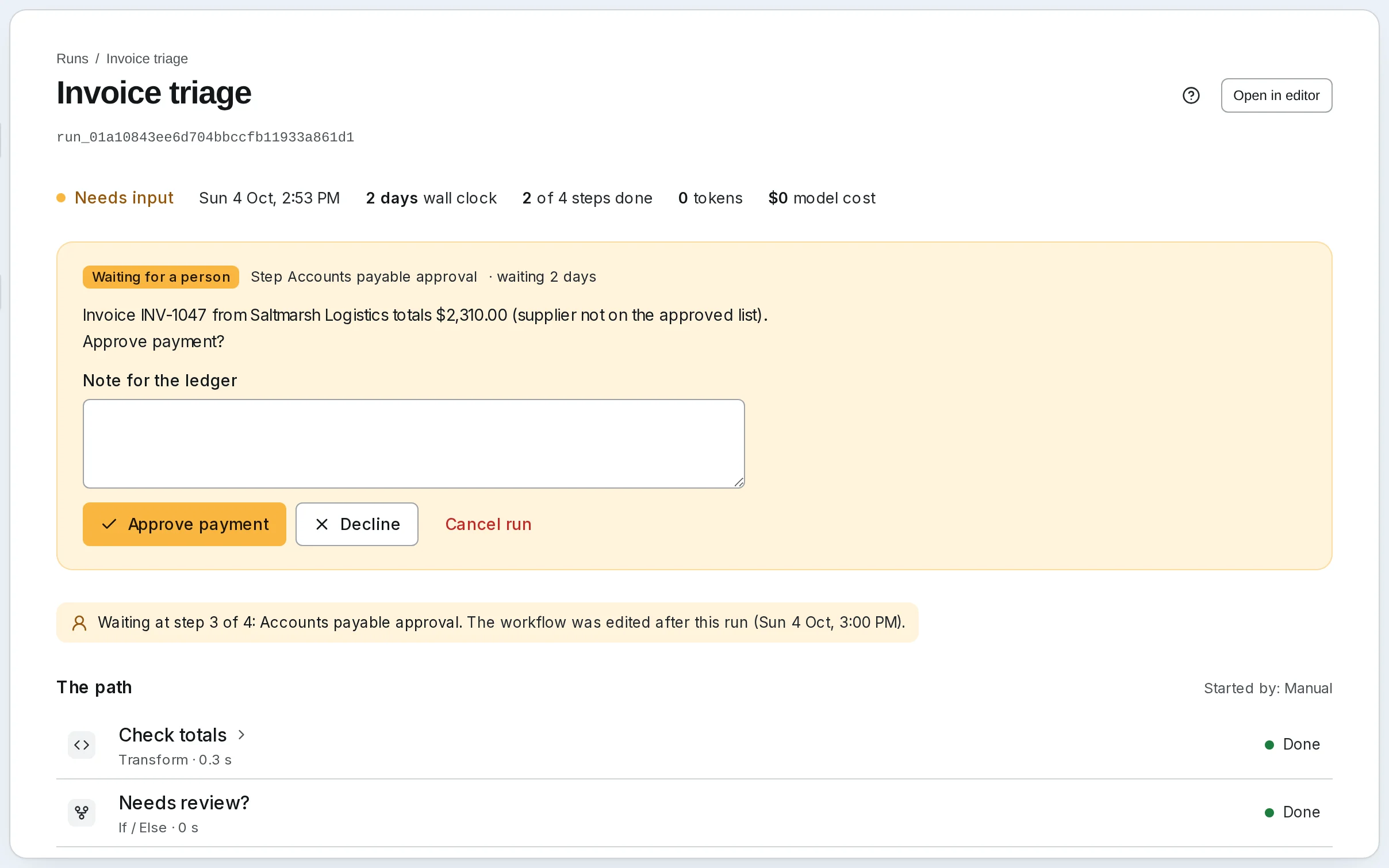
A Human step pauses the run and asks. The run reads Needs input, and the question is on its page, on Home, under Waiting on you in the menu and in notifications. Answer it where you see it: here, write a Note for the ledger if you like and press Approve payment or Decline. A question with fields of its own takes them and Send answer. The answer is written to state and the run carries on from the next step. Cancel run stops it instead.
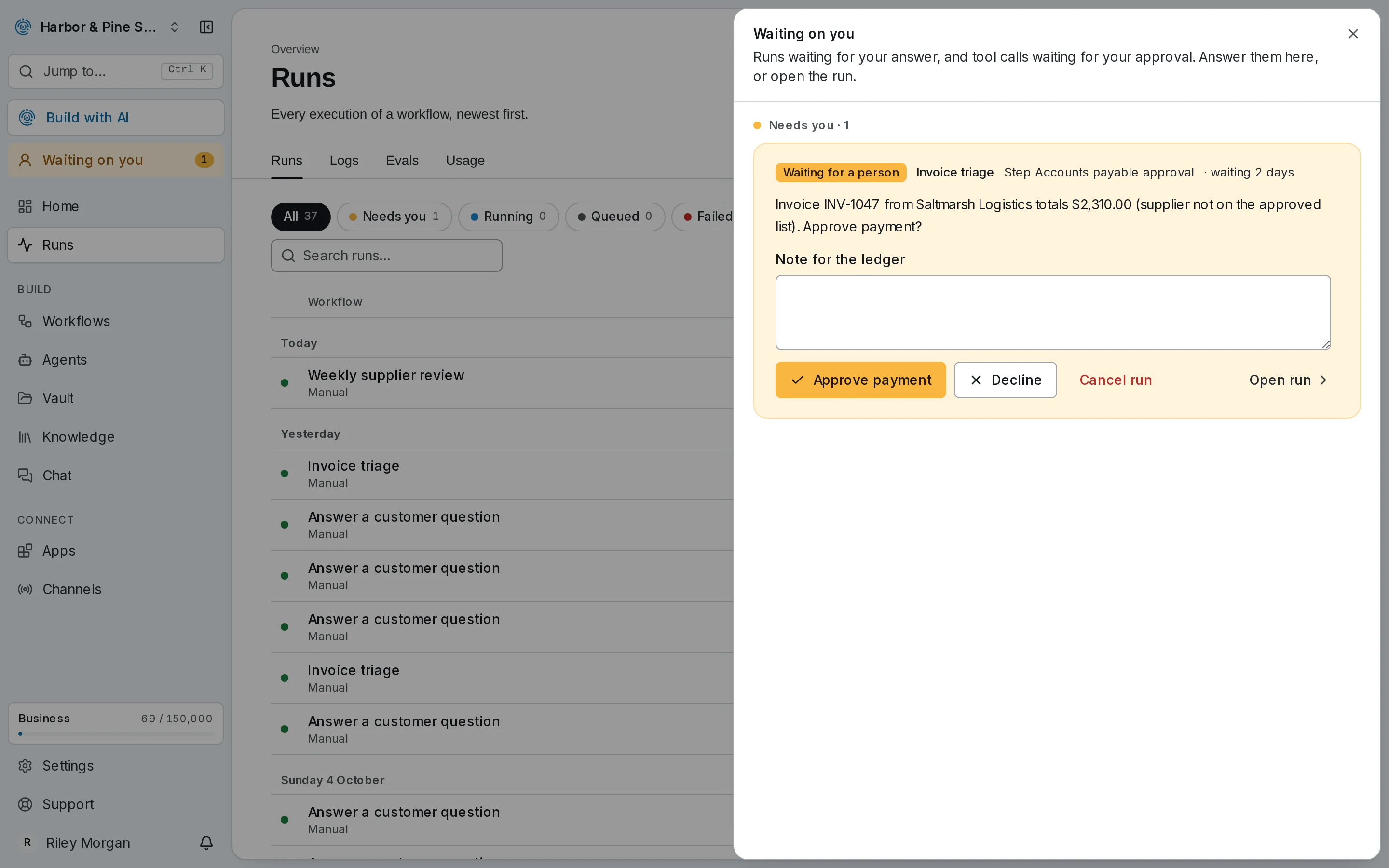
Waiting on you appears in the menu while anything waits for you — a run's question, or a scheduled agent's tool call to approve — and answers each one in place, from any page.
A run can wait for days. Waiting costs nothing, and does not count toward the run's time limit.
Find out why a run failed
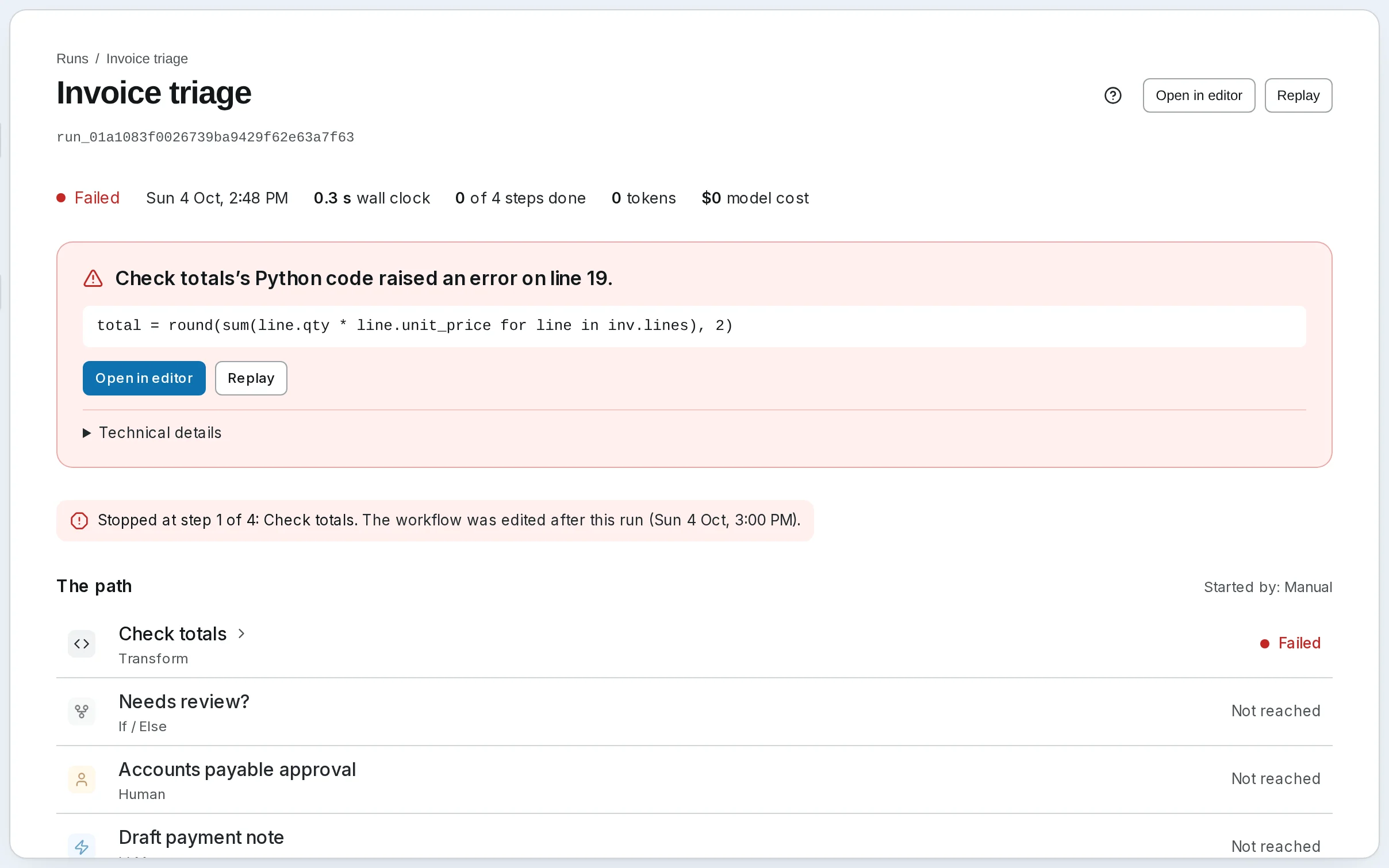
A run that did not complete says why at the top — Why it stopped: … — and the step that failed is marked on the path with its error. Here, the invoice was sent with its lines under items, and Check totals reads lines: the input was wrong, not the workflow.
Replay resumes a failed run from the step that failed, keeping what the steps before it did. Use it when the failure was passing — a provider that timed out, a server that was down. A run that failed on its input fails the same way again; start a new run with the right input.
Queued runs
Each plan runs a set number of runs at once. A run started while they are all busy waits its turn: it reads Queued, 2nd in line, moves up on its own, and starts as soon as a slot frees. Time in line is not charged, and Cancel works while it waits. See Capacity.
What a run cost
On SynapseOrch Cloud a run draws on two separate balances:
- Execution credits, from your plan, pay for the steps. A step is priced by its type: an Agent, LLM or Tool step is 1 credit; a Retrieve, Transform, If / Else or other logic step 0.1; a Human step nothing. Answer a customer question — one Retrieve and one LLM step — costs 1.1 credits. A run that works for minutes is charged at least one credit per started minute of working time. See What a credit is.
- The model wallet pays for the tokens SynapseOrch models use — the run's Model cost. A model on your own key is billed by the provider, and Usage shows an estimate of it.
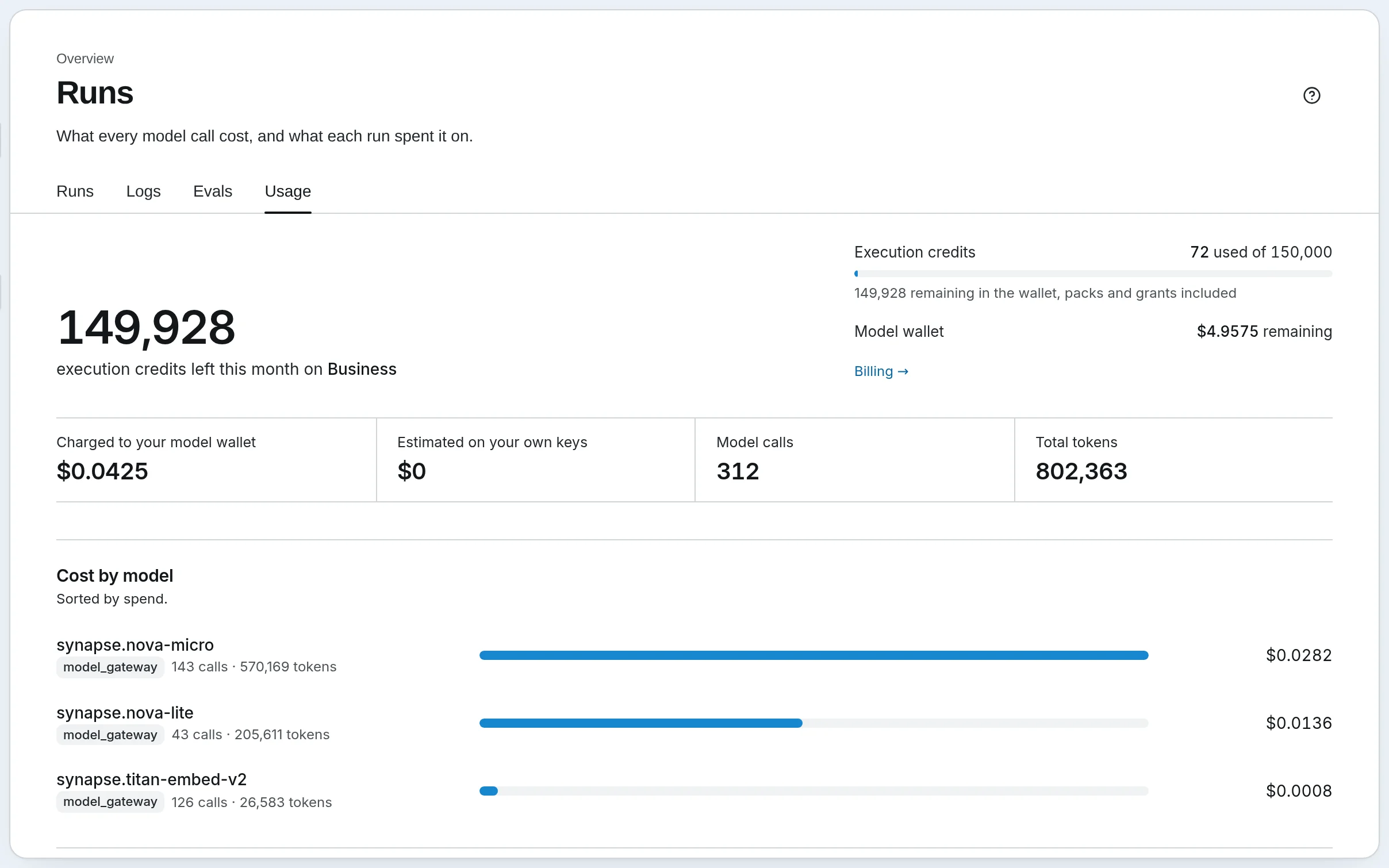
Runs › Usage puts both side by side: Execution credits and Model wallet remaining, what was Charged to your model wallet and Estimated on your own keys, Cost by model, and under Runs and sessions one row per run and chat — open one for every call it made, with the tool, the context it carried and its cost. See The wallet and plans.
Logs and notifications
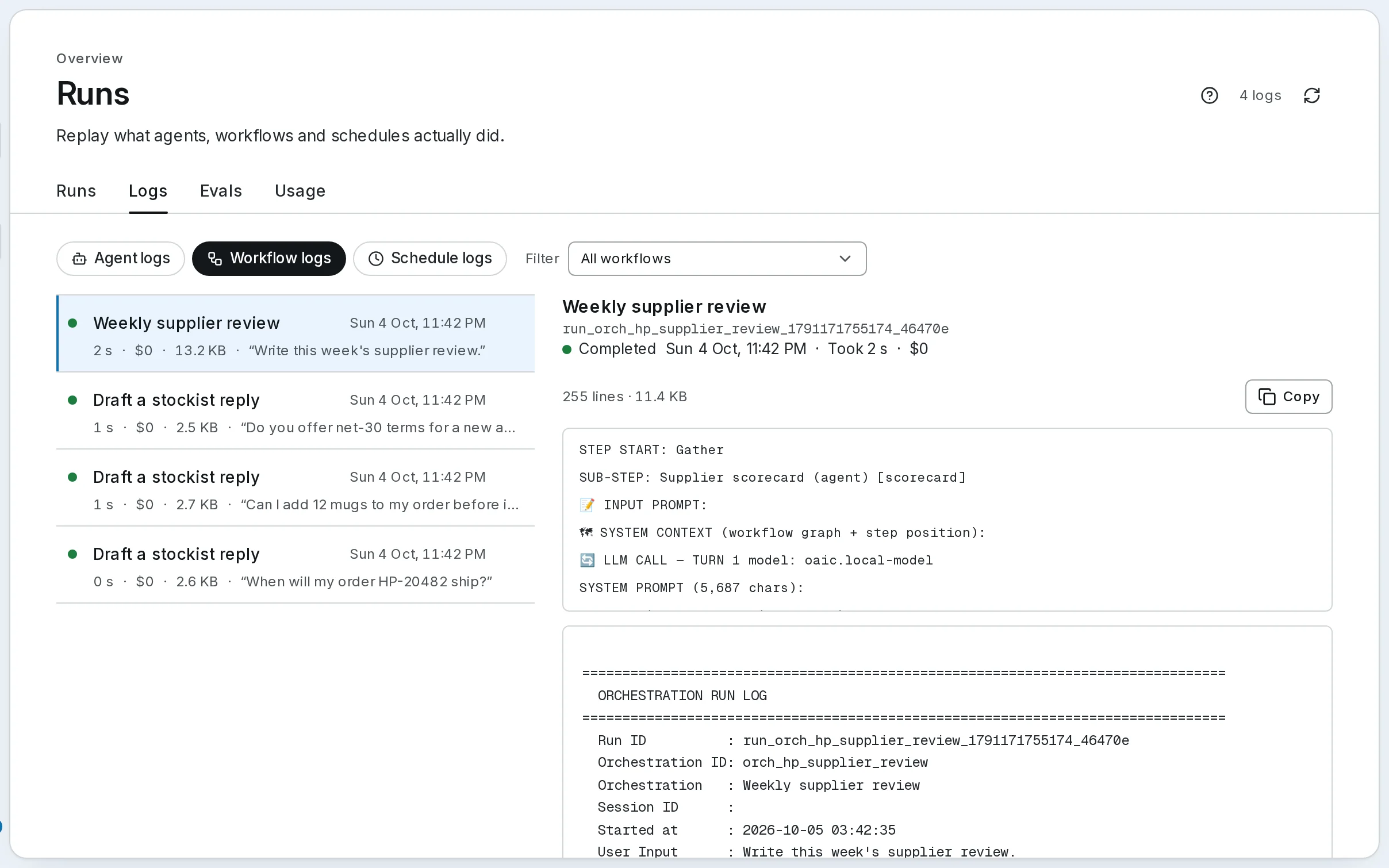
- Runs › Logs holds the full transcript of each run and each agent call: the system prompt, the context at every turn, each tool call with its result. Search by name, run ID or input. See Full Execution Logs.
- The bell lists runs that finished, failed or stopped to ask a question. Settings → Notifications chooses what reaches each role, in the app and by email. See Notifications and Email.
Self-hosted
Runs › Logs holds every run's log, with Agent logs, Workflow logs and Schedule logs at the top. Runs › Usage shows what model calls cost from a price table you can edit, its Pricing reference; there are no credits. See Usage Logs.
Next: score runs automatically, so you hear about a bad answer before a customer does.
Build your first workflow
From a blank canvas to a finished run: a two-step workflow that searches your documents and writes a cited answer, then runs, is read back and is deployed as an agent.
Score runs with evals
Write a rubric, have a judge model score every run against it, hear when a score falls, and re-run a fixed set of questions after every change.