Members and roles
Bring your team into the workspace, give each person the role they need, and see who did what: roles, seats, sessions, notifications and the audit log.
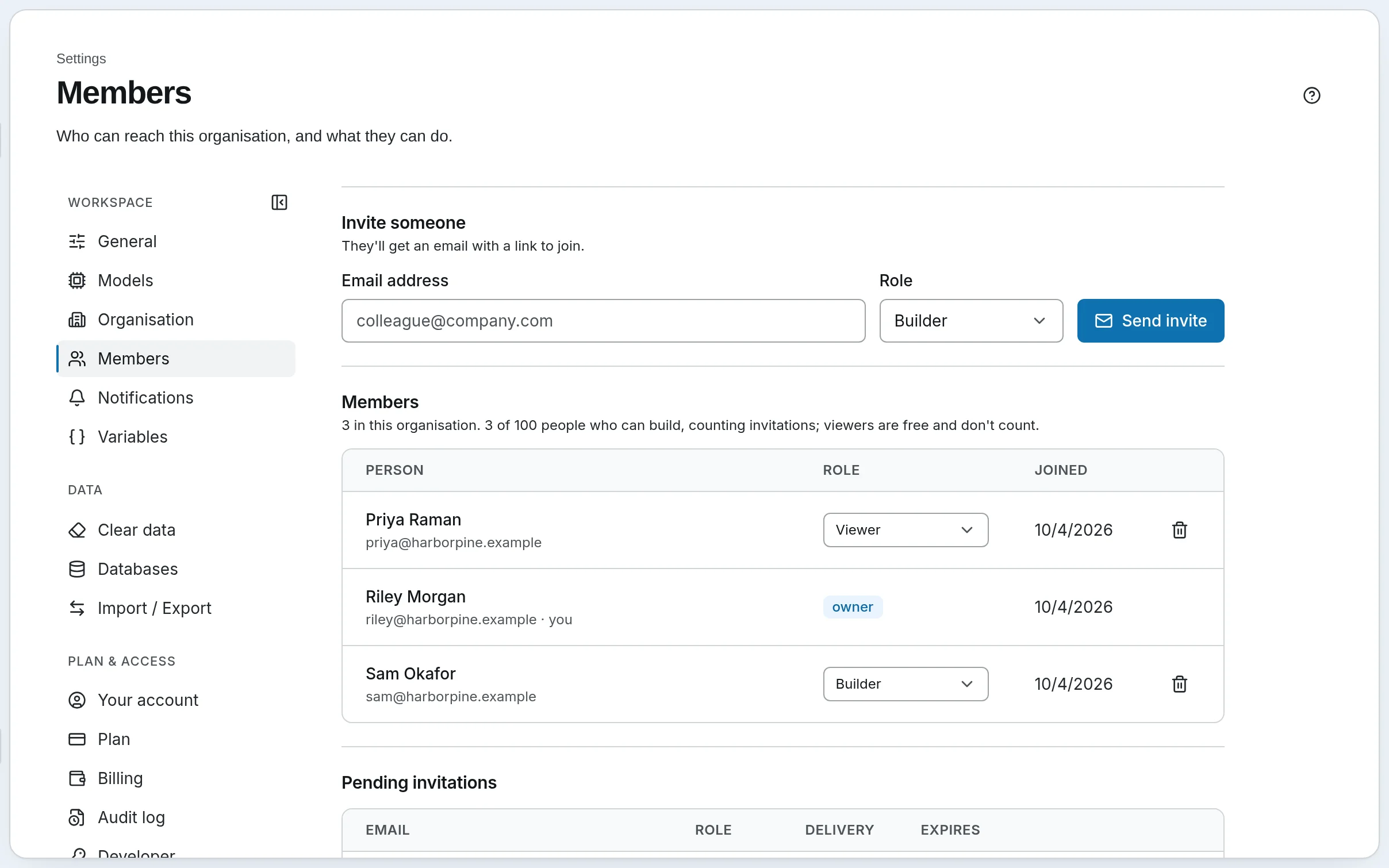
Everything on SynapseOrch Cloud belongs to a workspace (an organisation): agents, workflows, runs, usage and billing. People are members of it, each with one role. Harbor & Pine has three — Riley, the owner, Sam, who builds the workflows, and Priya, who reads the results — and an invitation out to Jordan.
Choose each person's role
Roles are ordered: each can do everything the one before it can.
| Role | Can | Harbor & Pine |
|---|---|---|
| Viewer | Read everything — workflows, runs, results — and change nothing. Cannot start a run, chat, or answer a run or an approval | Priya, in operations, reads the Monday review |
| Approver | Everything a viewer can, plus answer a run waiting for a person and a tool call waiting for approval. Free, like a viewer | A finance lead who signs off invoices over $5,000 without building anything |
| Builder | Make and change agents, workflows, tools and schedules; start runs; chat; answer runs and approvals | Sam builds the workflows and answers invoice approvals |
| Admin | Also invite and remove members, change roles, create API keys, manage the plan and billing, choose who is notified of what | — |
| Owner | Everything, including other owners and clearing the workspace's data | Riley |
Give people viewer unless they build. Viewers and approvers are free and unlimited on every plan, and never count toward the plan's builders. A team where four people build and twenty read results needs four builders, not twenty-four. See Organisations, Roles and Seats.
Invite someone
Send the invitation
Open Settings → Members. Under Invite someone, enter their Email address, pick a Role and press Send invite. Only admins and owners can invite, and only an owner can invite an owner.
Follow it
The invitation is listed under Pending invitations, with whether the email was delivered and when it expires. Resend it, or revoke it; an invitation expires after seven days, and resending it sends a fresh link with seven more. Someone with a SynapseOrch account joins straight away when they accept; someone new makes an account first.
Change roles as people's work changes
Change a member's role in their row, or remove them; removing someone ends their access at once. Making someone a viewer frees their builder's place immediately.
At the plan's limit. Each plan allows a number of people who can build, counting pending invitations as builder, admin or owner that have not expired. Members says where you stand: 3 of 100 people who can build, counting invitations; viewers are free and don't count. Promoting a viewer past it is refused, with the way out: make someone else a viewer first, or upgrade. On a paid plan, adding a builder beyond the included seats shows the charge for the extra seat and asks you to confirm it.
Decide who hears about what
Settings → Notifications sets, for the whole workspace, which roles hear about each event — a run that failed, a run waiting for an answer, a payment problem — in the app and by email. An admin or owner changes it. Under For you, each person turns off anything they would rather not get. See Notifications and Email.
Keep the workspace safe
- Sessions. Settings → Sessions lists the devices you are signed in on: when each began, when it was last used, its IP address and device. If you see one you do not recognise, press Sign out everywhere; it ends every session, this one included.
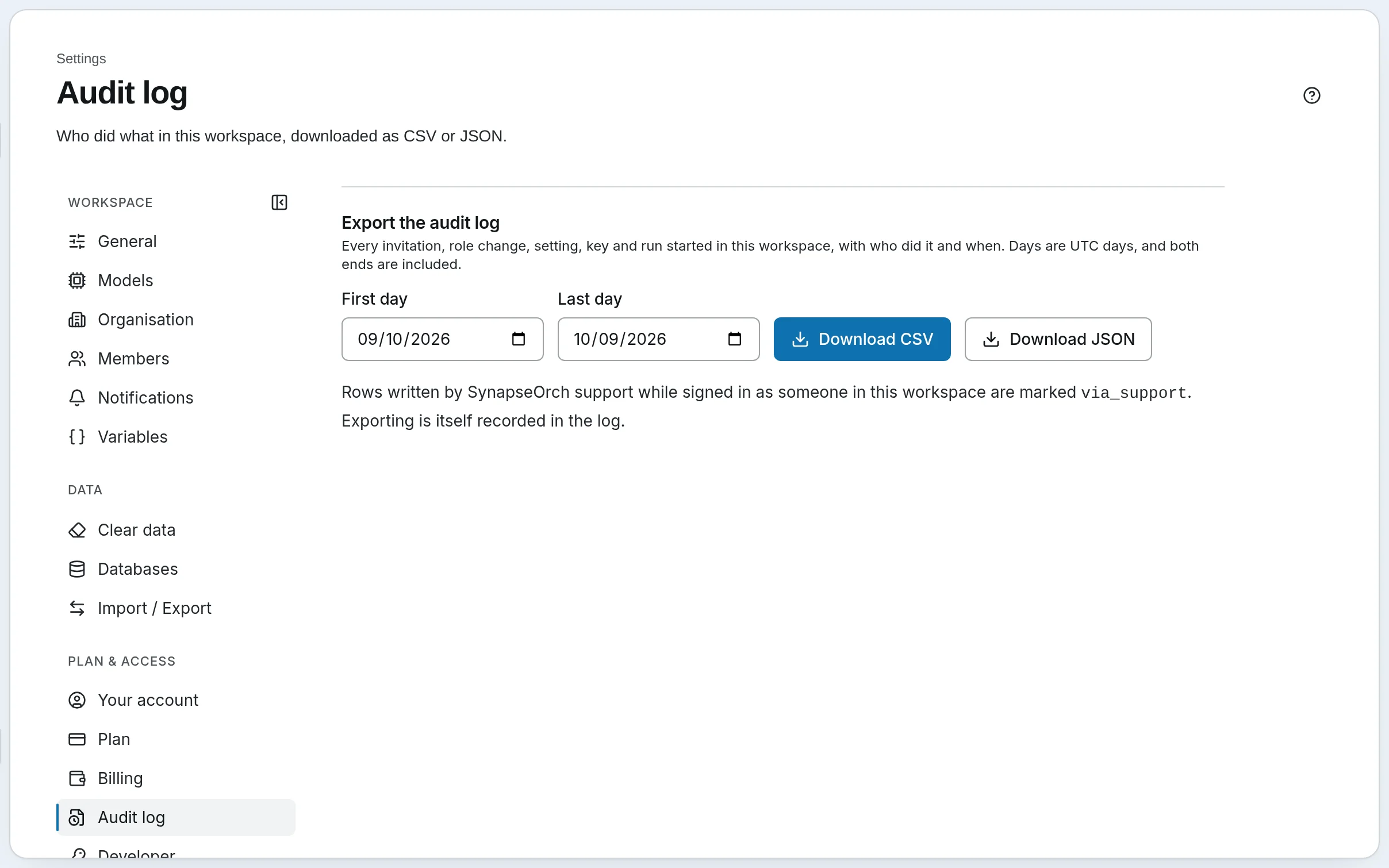
- The audit log. On the Business plan, owners and admins download the workspace's audit records — every invitation, role change, setting, key and run started, with who did it and when — from Settings → Audit log: pick the First day and Last day (UTC) and press Download CSV or Download JSON. Exporting is itself recorded. See Exporting the audit log.
- API keys are made and revoked by admins and owners. See The public API.
- Clearing data — chat history, run history, memory or usage — is the owner's alone, under Settings → Clear data, and cannot be undone.
More than one workspace
A person can belong to several workspaces; Switch workspace, under the workspace's name at the top of the menu, lists them. Nothing is shared between them — separate workflows, runs and billing — so keep a separate workspace for a real boundary, such as a client's work.
Next: the wallet and plans — what the workspace pays for, and how.
Phone calls
Let people phone one of your Twilio numbers and talk to an agent: the key to create, the three steps of Add a number, what callers hear, approvals during a call, reading a call afterwards, and what a call costs.
The wallet and plans
What a workspace on SynapseOrch Cloud pays for and how: execution credits for running workflows, the model wallet for SynapseOrch's models, plans, and what happens at the limit.