Workflows
How a workflow is built: steps in an order you choose, shared state that carries each step's result to the next, routes, people and guardrails.
A workflow has a fixed path. Each step does one thing, reads what it needs from the run's shared state, and writes its result back for the steps after it. The path is yours, so every run of a workflow goes the same way: you can read what each step did, and its cost hardly varies from run to run.
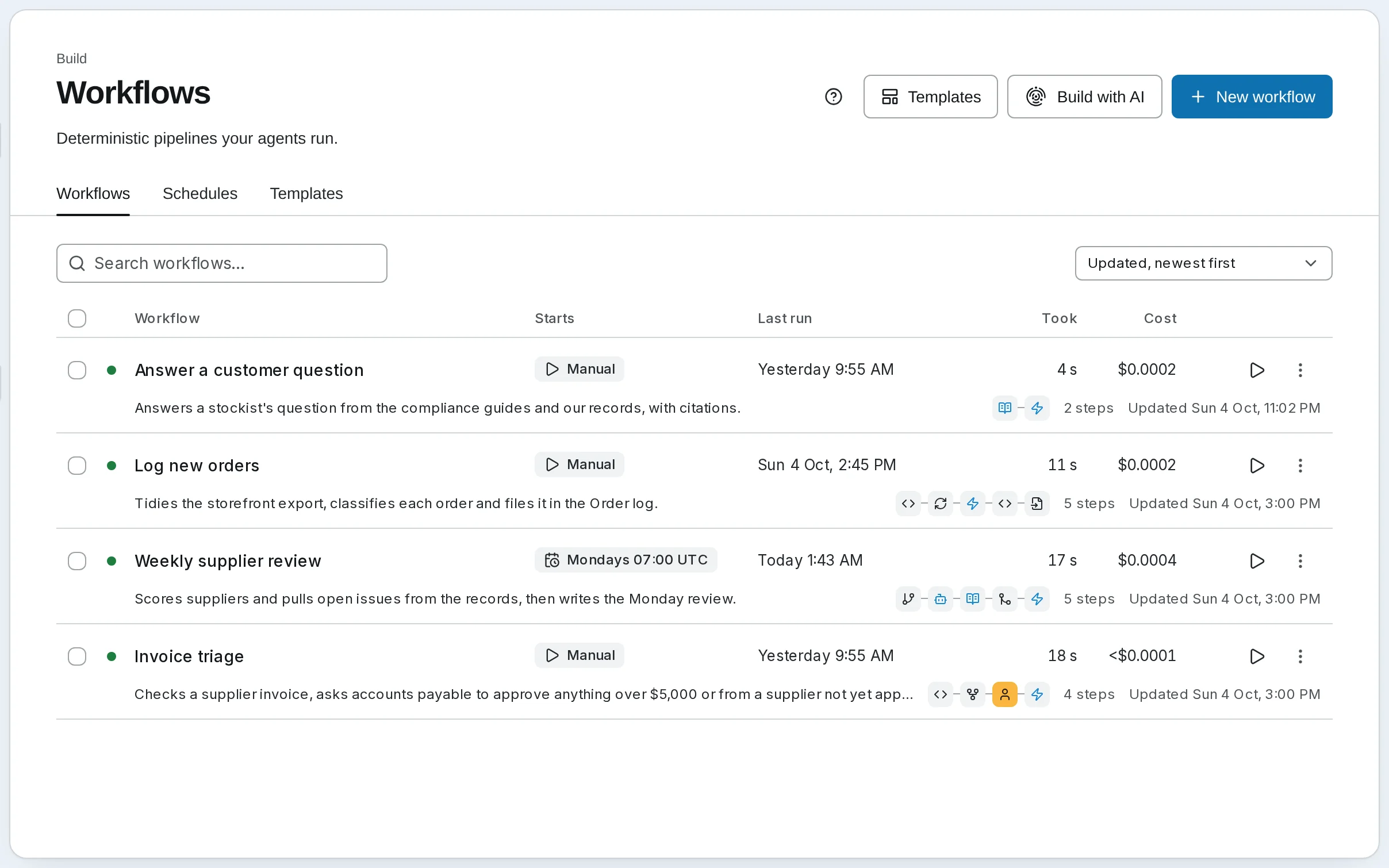
Harbor & Pine has four. This guide reads one of them, Invoice triage, step by step; the next builds one from a blank canvas.
Steps and shared state
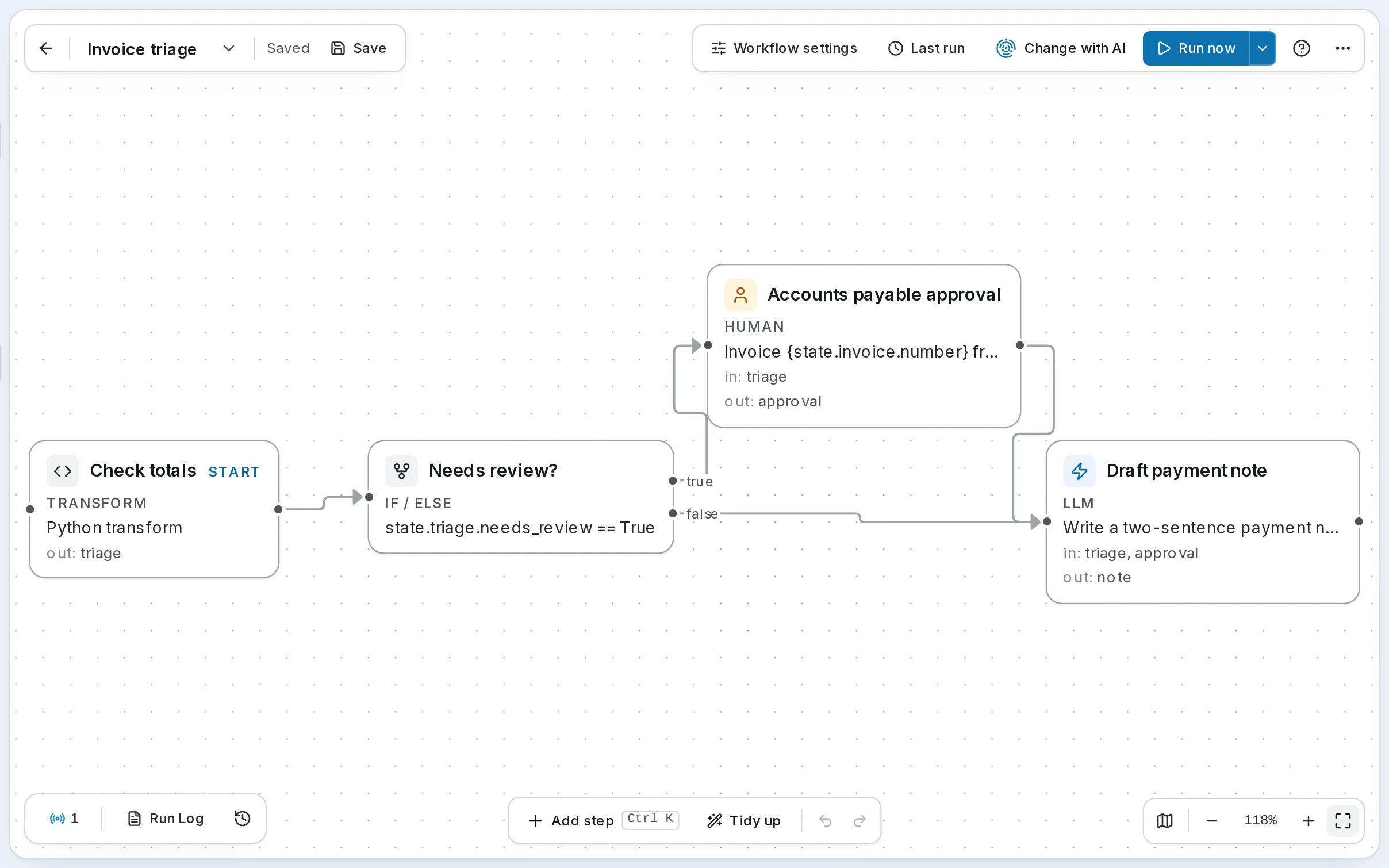
Invoice triage checks a supplier's invoice, asks accounts payable to approve anything over $5,000 or from a supplier not yet approved, then drafts the note for the ledger:
- Check totals, a Transform step, runs a few lines of Python over
state.invoice, which the run was started with (the API passes it asinitial_state): adds up the lines, compares the total with the limit and the supplier with the approved list. It writestriage: the total, whether it needs review, and why. - Needs review?, an If / Else step, reads
state.triage.needs_review == Trueand goes one of two ways. - Accounts payable approval, a Human step, pauses the run and asks: Invoice INV-1047 from Saltmarsh Logistics totals $2,310.00 (supplier not on the approved list). Approve payment? The answer — a tick box and a note — is written to
approval. - Draft payment note, an LLM step, writes two sentences from
triageandapprovalintonote, which is the run's result.
Each step's card on the canvas shows the same contract: in: the keys it reads, out: the key it writes. A prompt reads state with {{ state.key }}, nested paths included — the Draft payment note's prompt says {{ state.invoice.number }} — and a run starts with its input in state.user_input. When a run goes wrong, the state shows exactly what each step was given.
The steps you can use
Add step, in the dock at the bottom of the canvas (or ⌘K), lists every step, to click or drag onto the canvas. Grouped here by what each is for:
| Steps | Use it to | |
|---|---|---|
| Work | Agent, LLM, Tool, Workflow | Hand a part of the job to an agent and its tools; make one model call with no tools (classify, summarise, write); call one chosen tool; run another workflow as one step |
| Routes | If / Else, Switch, Evaluator | Go one way or another on a condition, on a value, or on a model's judgement |
| Shape | Parallel, Merge, Loop | Run branches side by side, join their results, repeat steps for each item in a list |
| Data | Transform, Extract JSON, Print | Reshape state with Python, pull JSON out of text, write text with state filled in |
| People | Human | Pause the run until someone answers a question or approves |
| Knowledge | Retrieve, Ingest | Search knowledge bases for passages, or file records into one |
| End | End | Stop the run on purpose |
Use the cheapest step that does the job. A Transform costs nothing; an LLM step is one model call; an Agent step is as many calls as the agent decides to make. Invoice triage does its arithmetic in Python and its approval with a person, and spends one model call, on the note.
Every step is described in Step Types.
Side by side, and one at a time
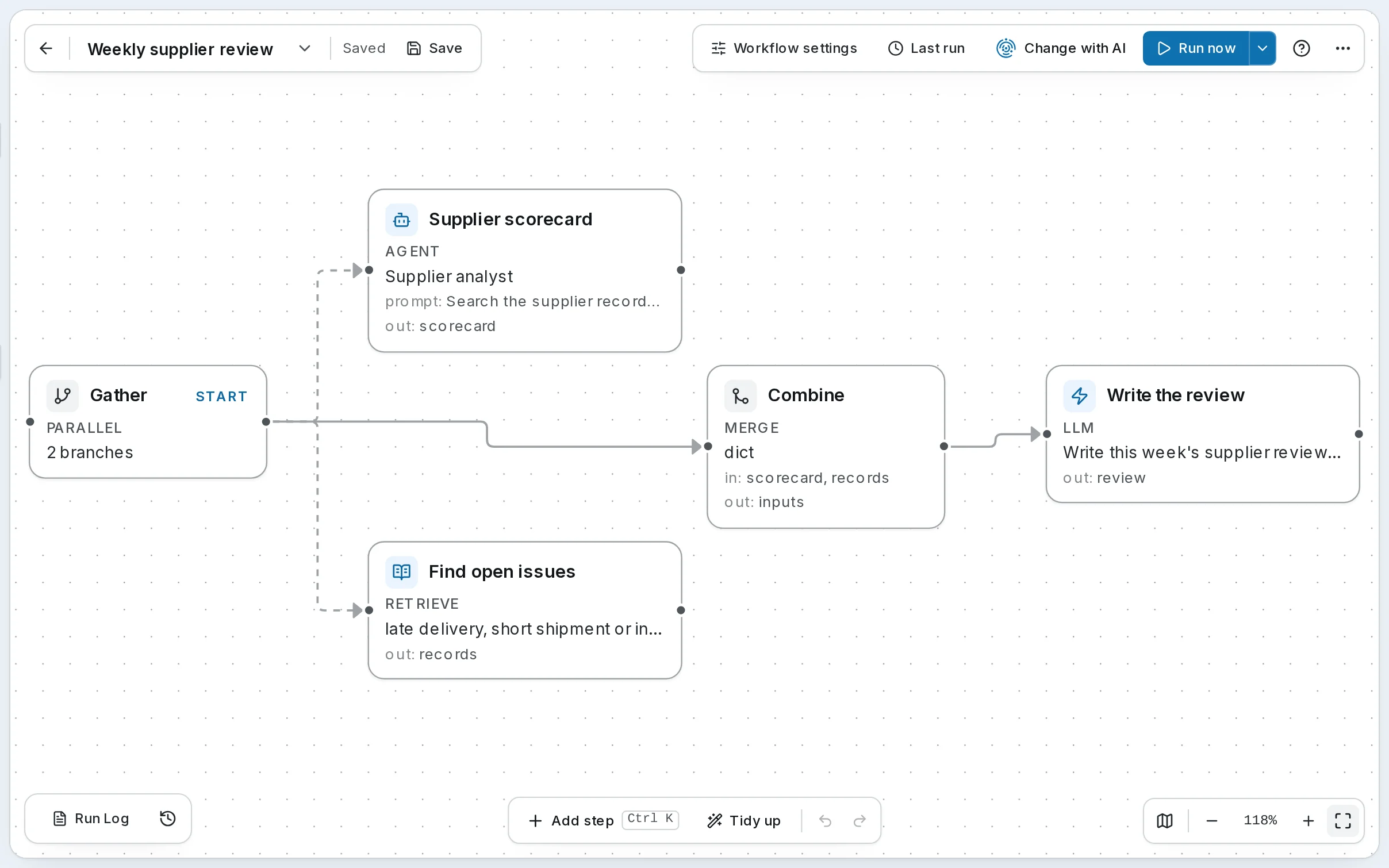
Weekly supplier review shows the shaping steps. Gather, a Parallel step, runs two branches at once: the Supplier scorecard Agent step asks the Supplier analyst to score each supplier, while Find open issues, a Retrieve step, searches the supplier records for late deliveries and disputes. Combine, a Merge step, joins scorecard and records into inputs, and Write the review, an LLM step, writes the Monday review from them. A schedule runs it every Monday at 07:00 UTC.
Log new orders uses a Loop: For each order runs a Classify LLM step once for every order in the storefront export, then an Ingest step files them all in the Order log knowledge base. See Ingest.
Around the canvas
- The setup card opens on the right when you click a step: its name, its prompt or code, its model, the keys it reads and writes, and Set as entry point for the step a run starts at (marked START).
- Run now, in the bar at the top, runs the saved version; the arrow beside it takes an input for the run. The run strip at the bottom left follows each step as it lights up, and its Run Log opens what it did.
- Workflow settings, in the same bar, holds the rest:
- State Schema lists the keys the workflow uses, each with a type, a default and a description. A typed key turns a step's text into a number, a list or an object as it is written.
- Guardrails cap a runaway run — Max Total Turns (100 steps by default) and a Timeout (30 minutes, not counting time spent waiting for a person) — and set the Result, the key that holds what the run made, and the rubric that scores its runs.
- The Description, what starts it (Trigger) and its Schedules.
- Deploy as agent, in the bar's menu, turns the workflow into an agent you can chat with: your message is its input, and its result is the reply.
Where a workflow comes from
You need not start from a blank canvas:
- Templates — the tab beside Workflows: ready-made workflows with their agents, to add to the workspace and change. See Templates and Setup.
- Synapse AI — in the menu on every page, or Build with AI on the Workflows page. Describe the job, and it draws the workflow for you to read and change before it runs. See Synapse AI.
- By hand — build your first workflow, next.
A workflow runs when you press Run now, on a schedule, through the API, or from chat once it is deployed as an agent. Every run is kept, step by step: see Runs and what they cost.
Self-hosted
The canvas is the same. Workflow settings has no Trigger: a workflow starts when you run it, on a schedule or through the API. See Creating Orchestrations.
Chat with an agent
Ask an agent something and watch it work: the tools it calls, the passages it cites, and the calls that wait for your yes.
Build your first workflow
From a blank canvas to a finished run: a two-step workflow that searches your documents and writes a cited answer, then runs, is read back and is deployed as an agent.