Schedules and channels
Work that starts without anyone pressing Run: a workflow every Monday morning, an agent that answers in Telegram (and in Slack or Discord when self-hosted), and a human step that asks its question in a channel.
Most work is not started by someone opening the app. It starts at a time — every Monday, the end of the month — or with a message in the chat tool your team already lives in. This recipe covers both, and the human step that asks its question where people will see it.
Run a workflow on a schedule
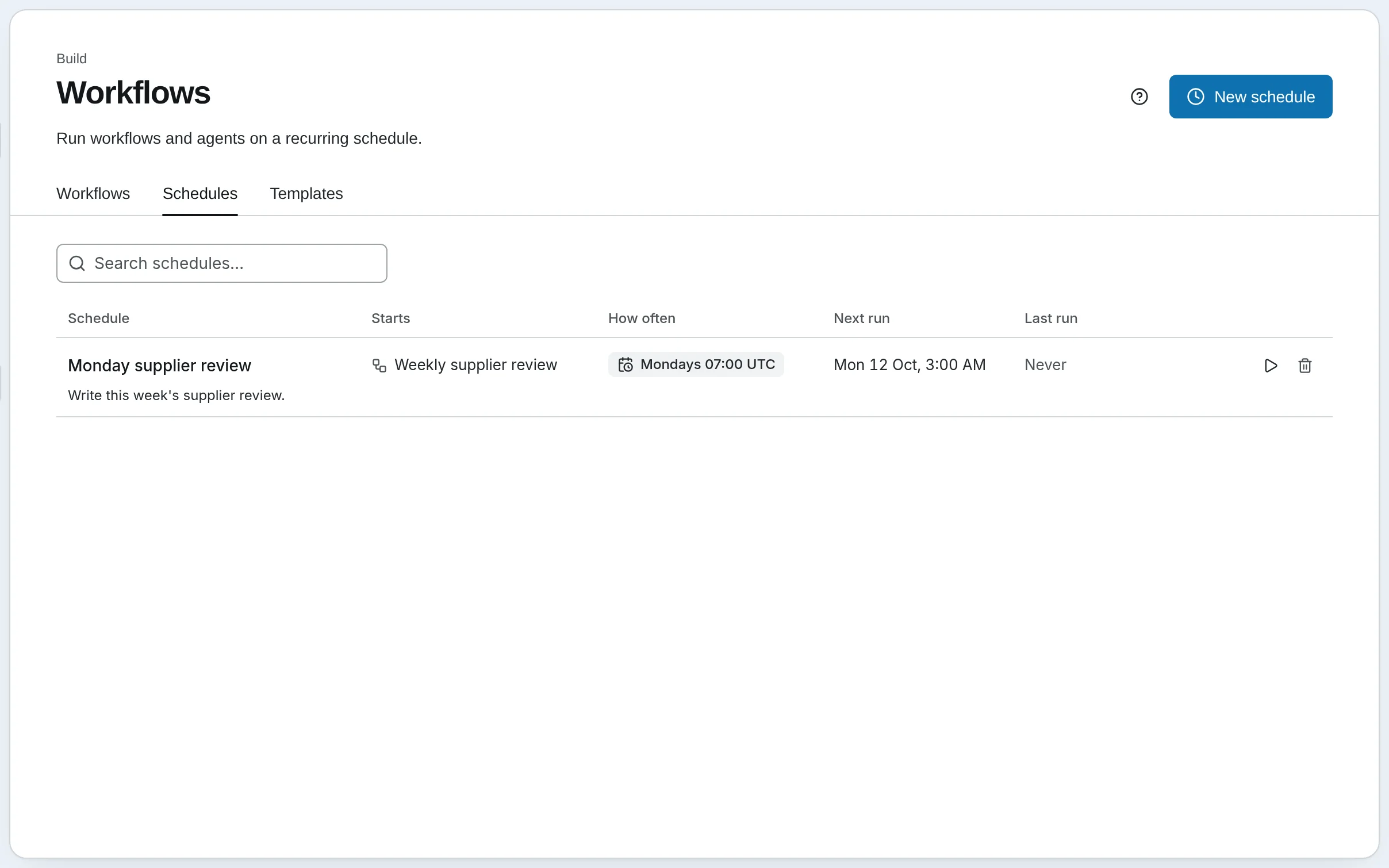
Harbor & Pine's operations team reads a supplier review every Monday. Nobody writes it: Monday supplier review runs the Weekly supplier review workflow at 07:00 UTC each Monday, and the review is waiting when the team arrives.
Say what it runs
Open Workflows › Schedules and press New schedule. Name it, and under What it runs choose Workflow or Agent, then which one.
Write the message
The Message is the run's input, the same text every time: Write this week's supplier review. A schedule is a trigger, not a conversation, so write it as an instruction that stands on its own.
Say when
Under How often, choose a Kind:
- Every… a number and a unit — every 6 hours, every 2 days. At most once every 5 minutes.
- Cron expression, for set times, in UTC.
0 7 * * 1is 07:00 every Monday;0 9 1 * *is 09:00 on the first of each month.
Decide what happens to a missed run
If a run is missed — say the service was down when it was due — choose Skip it or Run it late. A weekly report is usually better skipped than sent on Wednesday. Press Create; it starts running as soon as it is saved.
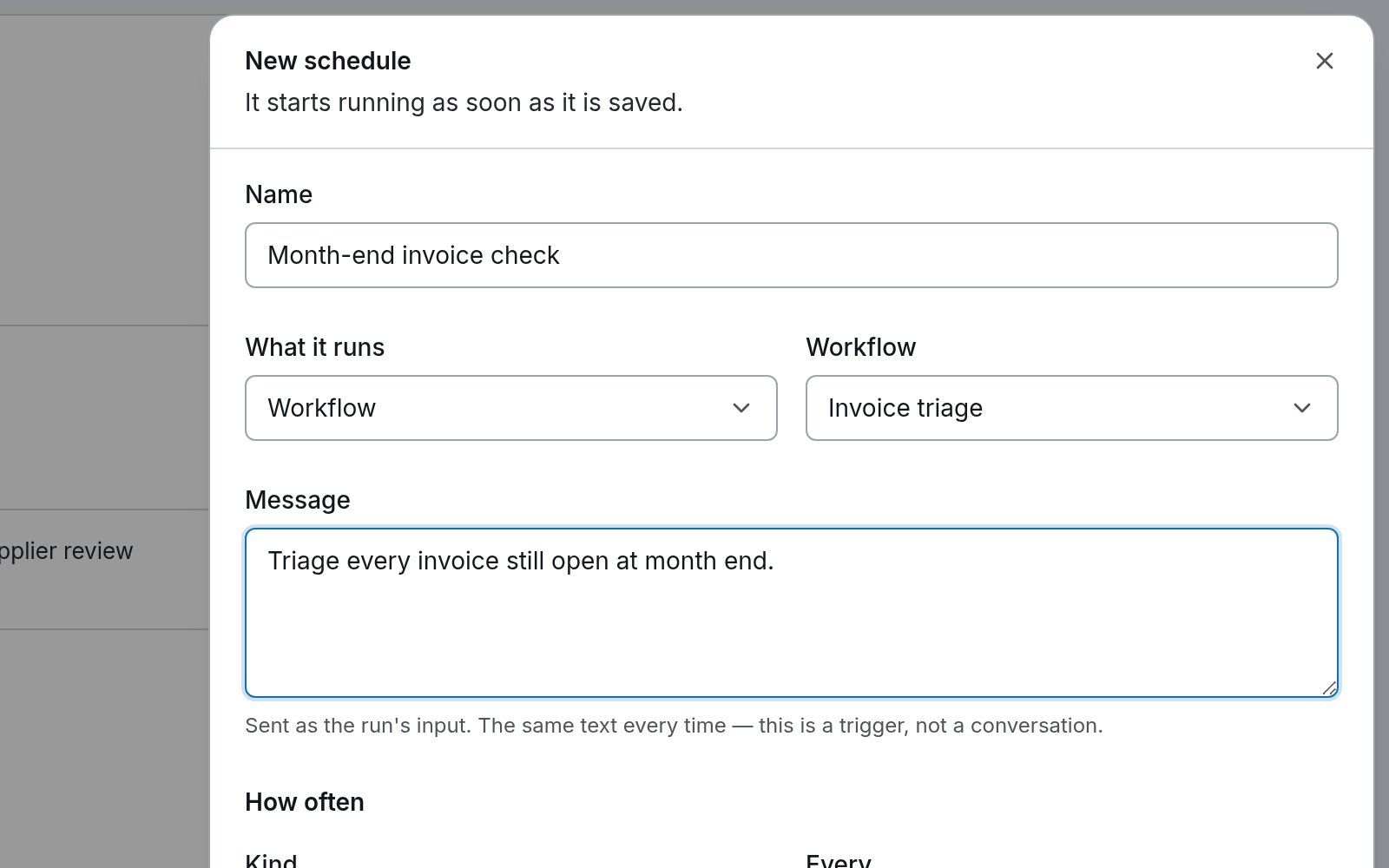
A schedule's play button runs it once now, which is the way to test it. Untick Enabled and save to pause it. Each scheduled run is an ordinary run: it is in Runs, it is scored if the workflow has a rubric, and it costs what any run costs. A scheduled agent's turns are its conversation, in Chat's History.
Answer in Slack, Telegram or Discord
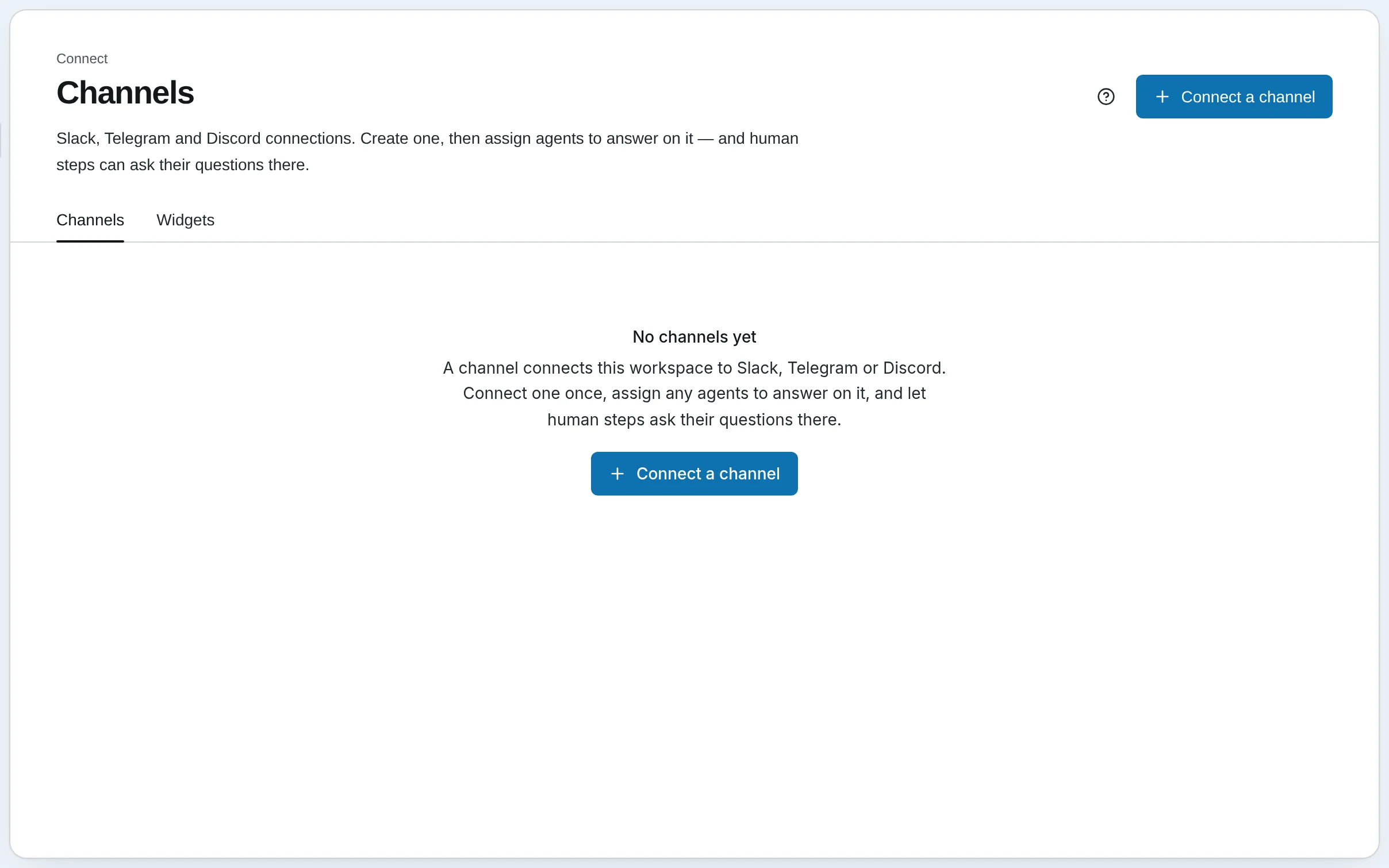
A channel connects the workspace to a chat app once; then any agents you choose answer there. Each person who messages the bot gets their own conversation.
On Cloud, channels connect to Telegram. Slack and Discord connect on a self-hosted install; on Cloud their cards answer Slack is not configured on this deployment (or Discord).
Connect the app
Open Channels and press Connect a channel.
- Slack or Discord (self-hosted) — you go to the app's own screen to authorize it, and come back connected.
- Telegram — make a bot with @BotFather in Telegram, paste its token, and press Validate & connect.
Say hello to the bot
Message the bot once from the place it should answer. That tells it where to reply, and turns on Send test, which checks the connection end to end.
Choose the agents
Under Agents, click the agents that answer on this channel. The first is the default; changes save at once. In the chat app, /agents lists them and /agent Order desk switches the conversation to another.
Decide who the senders are
Everyone who messages this bot is a workspace user is on to start: the agents run for a sender as they do for you, with their tools and memory. Leave it on for a bot only your team can reach. For a public bot, untick it: senders become visitors, as on the website widget, and the agents use only the tools you tick under What senders can use.
Nobody in a chat app can answer an approval card, so a tool call that would ask first does not wait for one there. Choose a channel's agents, and their tools, with that in mind.
Ask for approval in the channel
A Human step asks its question in the app. Give it a channel too, and the question goes where your team will see it.
- Open the workflow — say Invoice triage — and click its Human step, Accounts payable approval.
- Choose the channel in Notify messaging channel, and save.
- When a run pauses there, the bot posts ⏸ Invoice INV-1047 from Saltmarsh Logistics totals $2,310.00 (supplier not on the approved list). Approve payment? with Reply here to answer. A reply answers it, the bot confirms, and the run carries on.
Someone must have messaged the bot in that channel at least once, so it knows where to post. An answer in the app works too; whichever arrives first resumes the run.
Self-hosted
Schedules work the same way: New schedule, Run as an agent or a workflow, a Prompt, then Interval or Fixed time (cron). Each scheduled run's log is under Runs › Logs → Schedule logs. Channels also connects Microsoft Teams and WhatsApp, and each platform's setup guide says where its credentials come from. See Messaging.
Go further
- Scheduling — intervals, cron, missed runs, running one now
- Messaging — every platform, senders, switching agents, human steps on a channel
- Human Gates — how a channel answer resumes a run
A support bot on your site
Put an agent that answers from your documents on your own website with one script tag, and decide exactly what strangers can make it do.
Phone calls
Let people phone one of your Twilio numbers and talk to an agent: the key to create, the three steps of Add a number, what callers hear, approvals during a call, reading a call afterwards, and what a call costs.