Install on your computer
Install self-hosted SynapseOrch on macOS, Linux or Windows with one command, or run it in Docker — then open it for the first time, choose an AI, and keep it up to date.
SynapseOrch Cloud needs no install. This guide is for the self-hosted product, which runs on your own computer or server and keeps everything there. One command installs it with nothing installed first, and leaves it running in your browser.
The installer brings what it needs — Python, Node.js if yours is missing or older than 20.9, and the browser your agents' web tools drive — and keeps it in one folder, ~/.synapse. It asks which AI to use while it works, and ends with a link. It takes a few minutes, most of them downloading.
On macOS or Linux
Run the install line
Open Terminal (on Linux, any terminal) and paste:
curl -LsSf https://github.com/synapseorch-ai/synapse-ai/releases/latest/download/setup.sh | bashIt prints Getting the Synapse installer… while it fetches what it runs on, then its own screen. It needs no sudo, only port 8765 free. On Linux its Node.js needs glibc 2.28 or newer; on Alpine, install Node.js 20.9 or newer yourself first.
Choose the AI while it installs
The screen, headed with the version it installs — Synapse 2.0.0 — lists the steps: Getting Python, Installing Synapse, Node.js, Browser, Setting up, Starting. While they run, it asks Which AI should Synapse use?
- What it finds on this computer comes first: Ollama with its models, or the Claude Code, Gemini CLI, Codex and Copilot CLI command-line tools, each with the models it offers.
- Then Anthropic (Claude), OpenAI, Google Gemini, and Other… for DeepSeek, Grok, OpenRouter, AWS Bedrock or a local server.
- Skip for now leaves the choice for the app, which asks on its first start.
Pick a provider and paste its key (It stays on this computer.). The installer checks it by listing the provider's models, and offers another (Add a key for another provider?). Then it asks for two models: the Everyday model, which runs your agents and workflows, and Synapse AI's model, the assistant that builds them (Same as everyday model first). Move with ↑ and ↓, choose with Enter; Esc goes back.
Start on login, or not
Start Synapse when you log in? — Yes registers it with launchd on macOS, or as a systemd user service on Linux. It is not asked on WSL, or on a Linux without a systemd user session. synapse autostart on turns it on later, where it is available.
Open the link
It ends with one line, and opens it in your browser:
Synapse is running → http://localhost:3000/?token=…On a Linux with no desktop nothing opens; open the link yourself. If it adds Open a new terminal to use the synapse command., the synapse command works in a new terminal window.
On Windows
Open PowerShell and paste:
irm https://github.com/synapseorch-ai/synapse-ai/releases/latest/download/setup.ps1 | iexThe same steps and the same questions. Everything goes in %USERPROFILE%\.synapse. Start Synapse when you log in? adds a SynapseAI entry to your user's Run list. An older console draws the screen with plain characters instead of ✓ and the spinner.
Choose options
Options go after bash -s -- on macOS and Linux. In PowerShell, set each as a variable before the irm line — irm | iex passes no arguments.
| On macOS and Linux | In PowerShell, before the irm line | Does |
|---|---|---|
--yes | $env:SYNAPSE_YES='1' | Asks nothing and keeps every default: no AI chosen, no start on login |
--no-start | $env:SYNAPSE_NO_START='1' | Installs without starting |
--no-browser | $env:SYNAPSE_NO_BROWSER='1' | Prints the link without opening a browser |
--version 2.0.0 | $env:SYNAPSE_INSTALL_VERSION='2.0.0' | Installs that version |
--with knowledge | $env:SYNAPSE_WITH='knowledge' | Adds an optional part — knowledge, telemetry, or knowledge,telemetry |
For example:
curl -LsSf https://github.com/synapseorch-ai/synapse-ai/releases/latest/download/setup.sh | bash -s -- --with knowledge$env:SYNAPSE_WITH='knowledge'; irm https://github.com/synapseorch-ai/synapse-ai/releases/latest/download/setup.ps1 | iexIn Docker
On any system with Docker, nothing else needed:
docker run -d --name synapse -p 3000:3000 -p 127.0.0.1:8765:8765 -v synapse-data:/data -v /var/run/docker.sock:/var/run/docker.sock synapseorchai/synapse-ai:latestThen open the link that docker logs synapse prints:
[entrypoint] Access link (used while login is off; share only with people who may use this Synapse):
[entrypoint]   http://localhost:3000/?token=…
The synapse-data volume keeps everything. The Docker socket is for Python tools, which run in sandbox containers, and port 8765 is published on this machine only, for OAuth sign-ins. Provider keys are entered in Settings → Models, not read from environment variables. See Docker for other ports, an Ollama on the host, and Compose.
With npm or pip
If npm or pip is how you install tools:
npm install -g synapse-orch-ai, thensynapse— Node.js 18 or newer. The firstsynapseruns the same installer into~/.synapse.pip install synapse-orch-ai, thensynapse— Python 3.11 to 3.14 and Node.js 20.9 or newer. The firstsynapsein a terminal asks its questions there, then starts.
See Install locally for both.
The first start
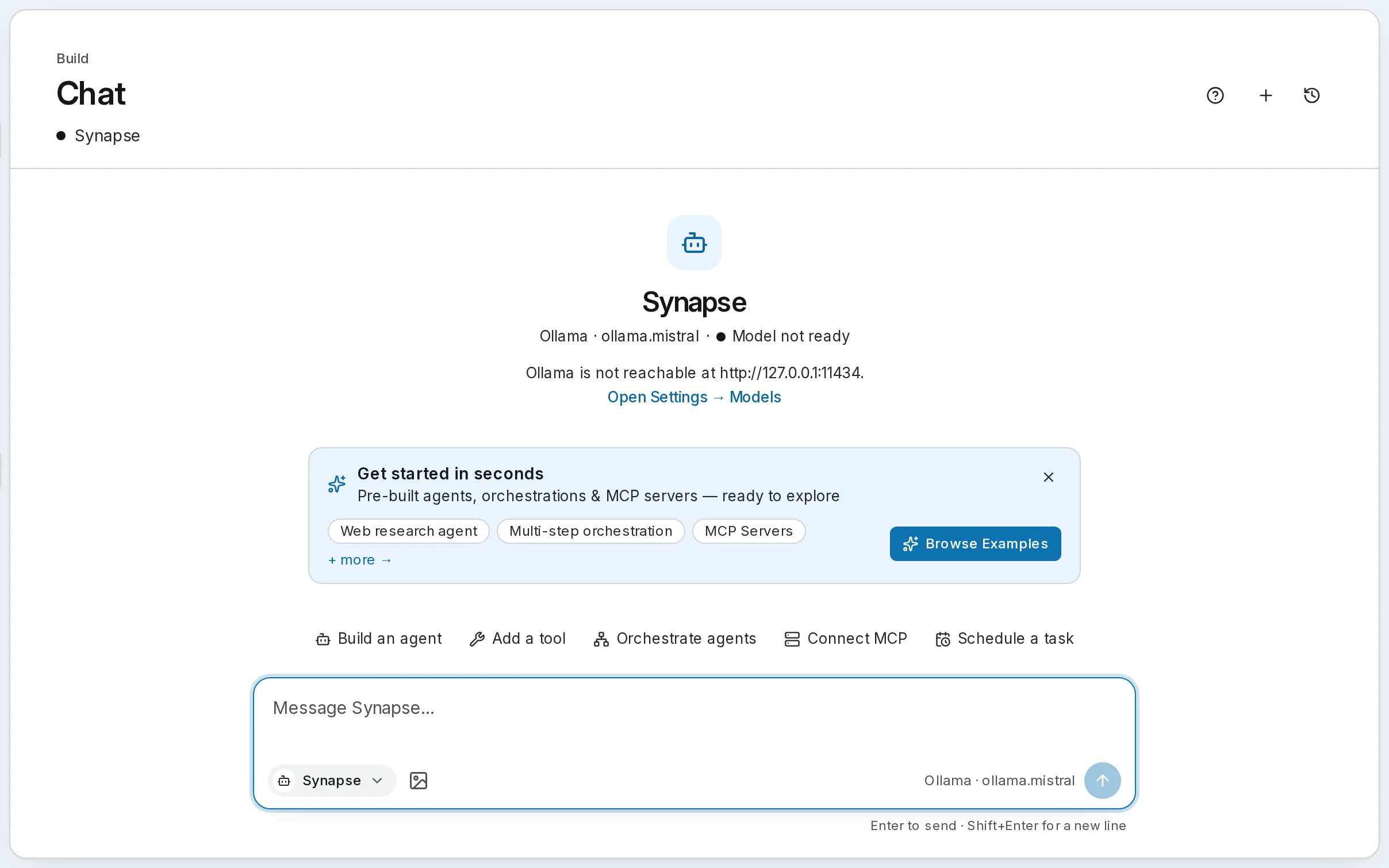
The link signs your browser in for 7 days, and its token leaves the address so it never sits in your history. It opens on chat; for the first twelve days a Get started in seconds banner offers examples to try (Browse Examples). Synapse AI, the assistant that builds and changes things for you, is in the menu.
If you skipped the AI, or its key or server cannot answer, the app opens on Connect a model. Which AI should Synapse use? says what is missing, lists what this computer has (Found on this computer, no key needed: a signed-in CLI, or Ollama with its models) and takes a provider's key in its card; Pick your two models follows. Close it and Chat's greeting says Model not ready and why — Ollama is not reachable at http://127.0.0.1:11434. — with Connect a model to open it again. Until you choose, the default model is Ollama's mistral.
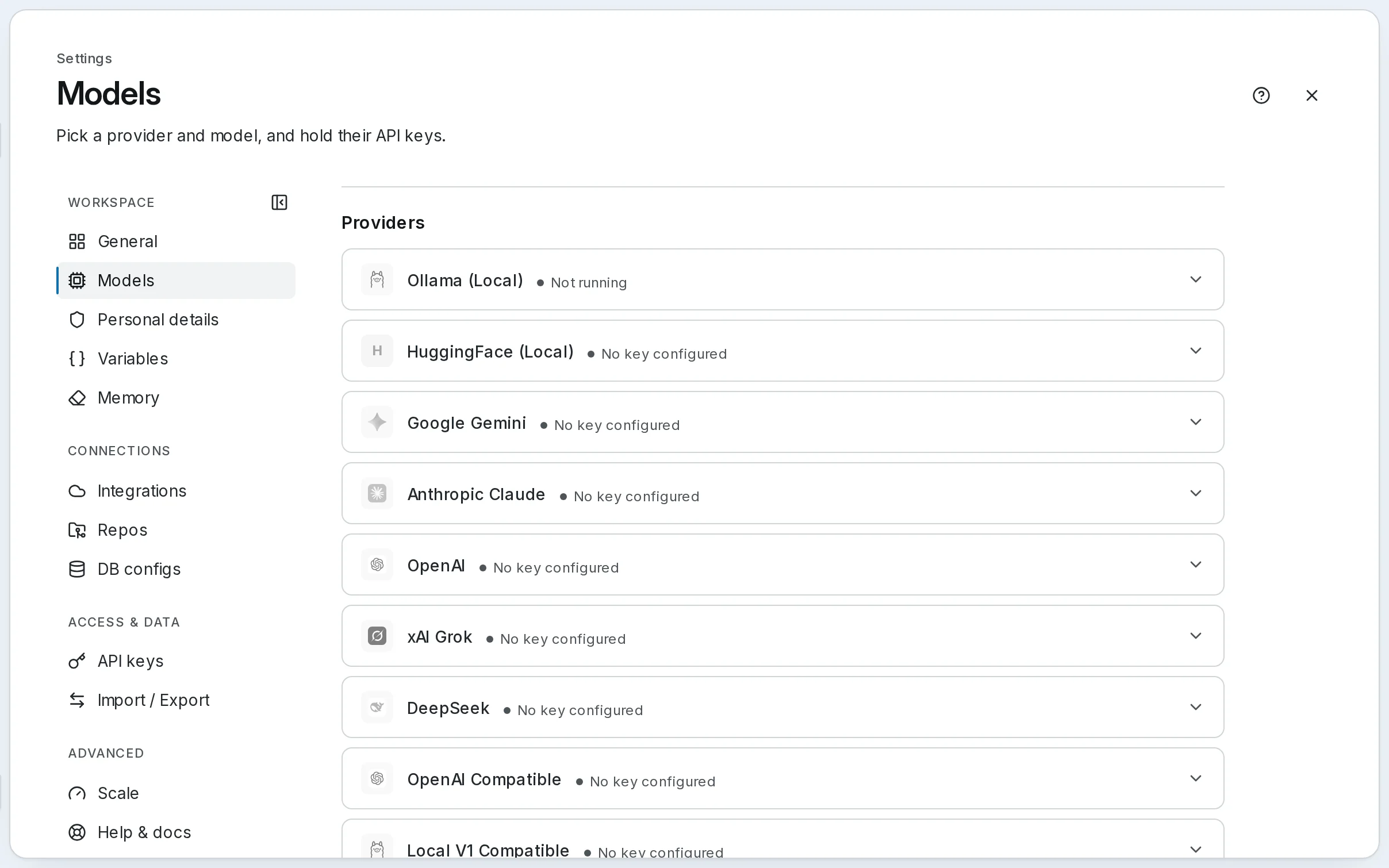
Or open your provider's card in Settings → Models, paste its key, pick the model under Default Model, and Save Changes. The greeting then reads Ready. Set up the workspace covers the rest of Settings.
While login is off, the link is the way in: synapse access-link prints it again, and anyone who has it can use this Synapse, so share it only with people who may. Before you open the port to a network, turn on login in Settings → General — see The access link. synapse status says whether the backend and the frontend are running.
Add Knowledge's PDF reader
Knowledge reads PDFs, Word, Excel and PowerPoint files with its built-in readers; switch it on in Settings → General. For PDFs laid out in columns and tables, and HEIC photos, add the optional knowledge part:
synapse upgrade --with knowledgeIt keeps the version you run, adds Docling's reader with PyTorch's CPU build, and fetches Docling's models once, about 670 MB. Every later synapse upgrade keeps it. To have it from the start, add --with knowledge to the install line instead. See Formats and parsing.
Keep it up to date
synapse upgradeIt stops SynapseOrch, backs up the database to ~/.synapse/backups/ (keeping the five newest), installs the newest release with the parts you added, updates the database, and starts it again if it was running. With nothing newer, it says Synapse 2.0.0 is up to date. On Windows it carries on in a new window.
- npm:
synapse upgradenames the line to run,npm install -g synapse-orch-ai@<version>; run it, thensynapse. - pip:
synapse upgradeworks the same way, with pip. - Docker:
docker pull synapseorchai/synapse-ai:latest, thendocker stop synapse && docker rm synapseand the samedocker run. The volume keeps your data. - From 1.x: run the install command again. It backs up the 1.x install, moves your data across and removes the old one — see Upgrading to 2.0.
When something goes wrong
- A step fails. It says so, with the last lines of its log and Running the installer again picks up where it stopped. The whole log is
~/.synapse/logs/install.log. - port 8765 is in use by another program, and Synapse's backend needs it. Close that program — an older Synapse running in another window, say — and run the installer again. Port 3000 needs nothing: when it is taken, the next free port is used.
- Another Synapse installer is running. Let it finish, or close it.
- Browser says not now. The install carries on without it;
synapse starttries again, and your agents' web tools wait for it.
synapse uninstall removes it — see Uninstalling.
Go further
- Install locally — every way to install, its options, the requirements and uninstalling
- The CLI —
synapse start,status,upgrade,access-linkand the rest - Docker — ports, volumes, Compose and updating the image
- Upgrading to 2.0 — what comes across from 1.x
- Formats and parsing — what Knowledge's PDF reader adds
Next: set up the workspace.