Build your first workflow
From a blank canvas to a finished run: a two-step workflow that searches your documents and writes a cited answer, then runs, is read back and is deployed as an agent.
This guide builds Harbor & Pine's Answer a customer question from nothing. It has two steps: the first searches the company's documents for passages about the question, and the second has a model write a short answer from those passages, citing each one. Along the way you place steps, connect them, pass state from one to the next, choose the run's result and watch a run go.
Before you start you need a knowledge base with a few documents in it; making one takes a couple of minutes. With none yet, use an Agent step with your agent in place of the search: the agent answers in one step, from whatever its tools reach.
Lay out the steps
Start a blank workflow
Open Workflows and press New workflow: an empty canvas opens. Click its title in the bar at the top, New orchestration, and name it Answer a customer question. Open Workflow settings and, under Description, describe it in a line: Answers a stockist's question from the compliance guides and our records, with citations. The description is what people see in the list, and what Synapse AI reads when it is asked to use this workflow.
Add the search
Press Add step in the dock at the bottom of the canvas and click Retrieve, or drag it onto the canvas. The first step you add is where a run starts, marked START; Set as entry point in a step's setup card moves that mark.
Click the step to open its setup card on the right and set it up:
- Name — Search the guides.
- Knowledge bases — pick the bases to search: Compliance guides and Suppliers & invoices.
- Query — what to search for. The run's input lands in
state.user_input, so type{{ state.user_input }}; typing{{lists what you can use. - Output key —
sources. The passages land there, for the next step to read.
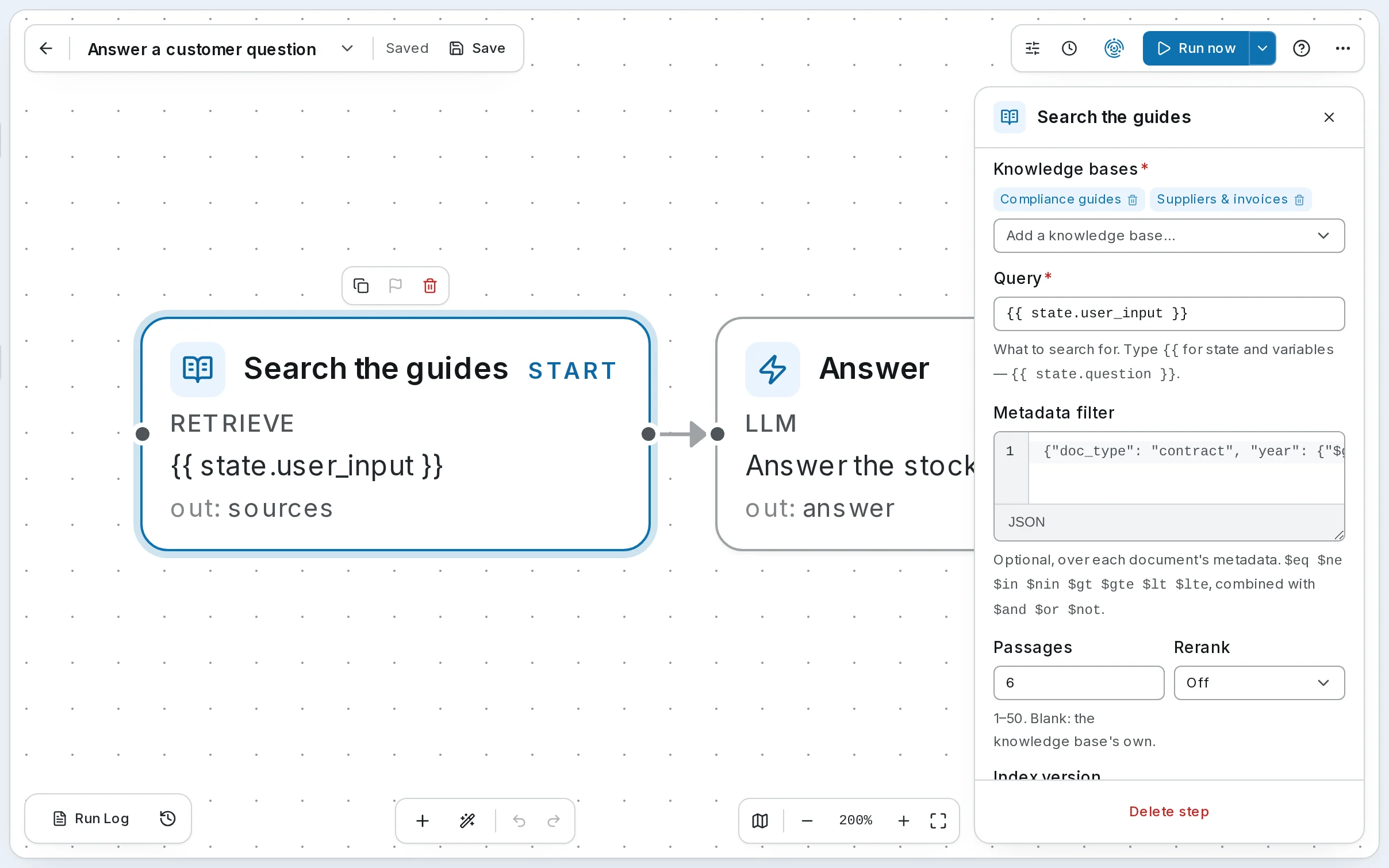
A Retrieve step makes no model call; it only searches, so it costs a fraction of a cent.
Add the answer
Add an LLM step the same way — typing in Add step's list finds one by name — and connect it: drag from the right-hand handle of Search the guides to the left-hand handle of the new step, or choose the new step under Next step in the first one's card. Then set it up:
-
Name — Answer.
-
Prompt template — the whole prompt, with state filled in where you write
{{ state.… }}:Answer the stockist in under 120 words using only the passages below, citing [K#]. If they do not cover it, say so and offer the order desk. Question: {{ state.user_input }} {{ state.sources.context }}sources.contextis the passages the search found, each under its label —[K1],[K2]— ready to put in a prompt. -
Model override — leave it on the workspace default, or pick one for this step.
-
Output key —
answer.
Say what the run makes
Open Workflow settings and, under Guardrails, set Result to answer. The result is what the run hands back: the reply in chat, the response over the API, and what a rubric scores. Left on its default, it is the last step's output, which here is the same; naming it keeps it right when you add a step later.
Its State Schema lists the keys the workflow uses — sources and answer; give each a description for the next person who opens it.
Save
Press Save in the bar at the top, or Ctrl+S. Problems show in the bar as a count — 2 to check — and on each step — No prompt set, No output key — this step's result is discarded, Unreachable from the entry point — so a half-built step is easy to find.
Run it
Give it an input
Open the arrow beside Run now in the bar at the top, type a question — What is the 30-day rule for shipping mail and internet orders? — and press Run. It runs the last saved version.
Watch it go
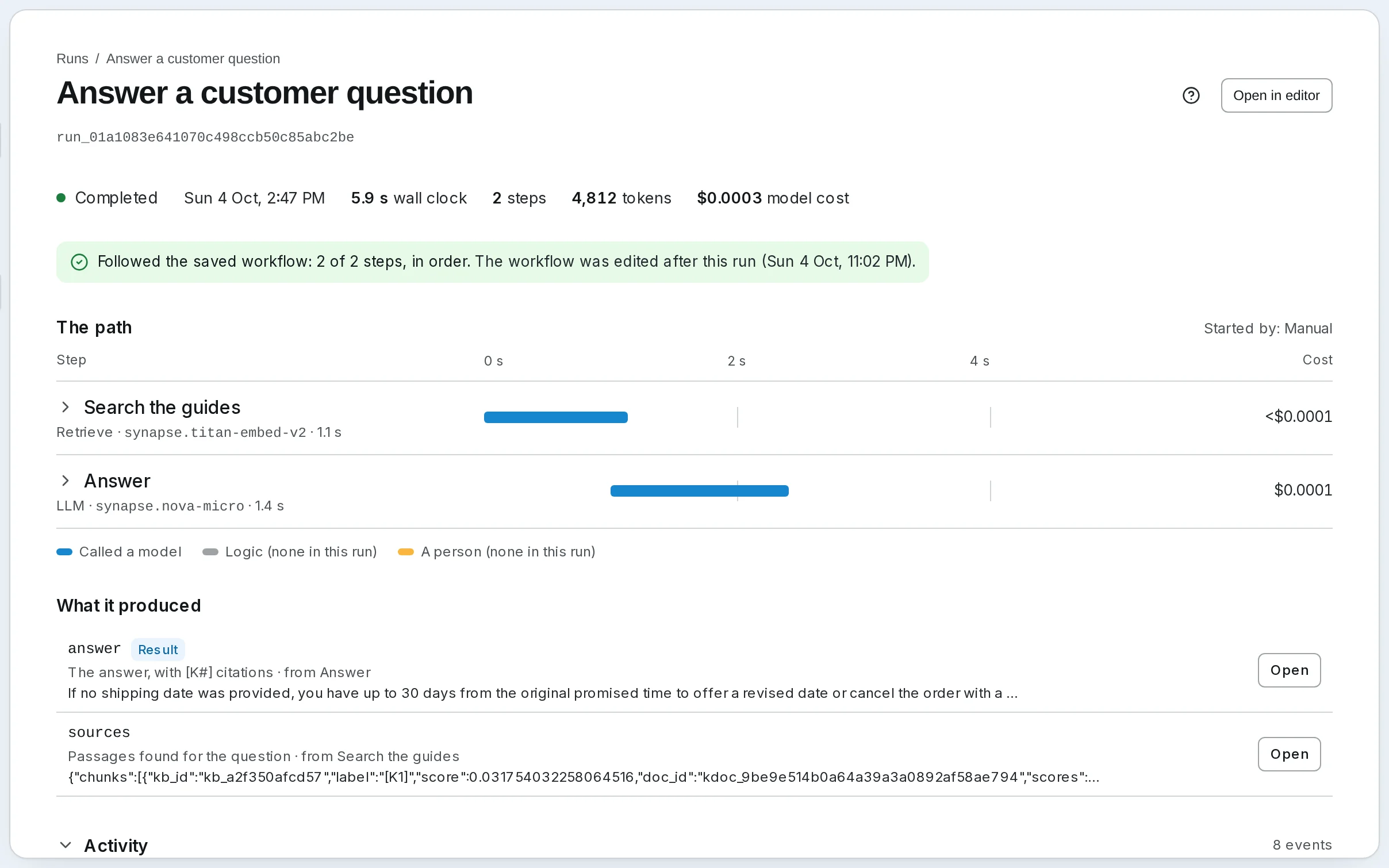
Each step lights up as it runs, and the run strip at the bottom left says where it is. Its Run Log follows the run, and the answer appears there when the run ends: a few sentences citing [K1] and [K3].
Read it back
Open Runs: the run is at the top. Its page shows each step's output and cost, the shared state the run left, and the exact prompt the model was sent. See Runs and what they cost.
Make it something people can use
The workflow is ready to run on its own:
- From chat. Choose Deploy as agent in the menu of the bar at the top. The workflow joins Chat's agents, marked Workflow: a message is its input, and its result is the reply. See Chat with an agent.
- On a schedule, with the same input each time: Schedules and channels.
- From your own code: The public API.
- Scored, on every run: a rubric judges each answer and flags the weak ones.
Go further
- Creating Orchestrations — everything on the canvas
- Step Types — every step's fields, including Retrieve and LLM
- Human Gates — a step that waits for a person's yes
Next: runs, and what they cost.
Workflows
How a workflow is built: steps in an order you choose, shared state that carries each step's result to the next, routes, people and guardrails.
Runs and what they cost
Follow a run while it works, answer one waiting for a person, find out why one failed, and read what each run and model call cost.