Knowledge Bases
Make a Vault folder searchable, so agents and workflows answer from your own documents and say which passage each answer came from.
A knowledge base is a Vault folder made searchable. Every file in the folder is read, cut into passages and indexed — documents, spreadsheets, slides, email, web pages, code. An agent given the base searches it with search_knowledge, answers from the passages it gets, and cites each one as [K1], [K2]…; the answer shows those passages under Sources, each linked to its file and page.
Because a base is a folder, there is one copy of each document. Agents' Vault tools still read the same files, and anything that writes into the folder — an upload, an edit on the Vault page, an agent, a workflow's Ingest step, a web crawl — is indexed by itself.
A base, or a file in the prompt?
| Best for | Cost per turn | |
|---|---|---|
@[path] in a system prompt | A short file the agent needs on every turn — a style guide, a price list | The whole file, every turn |
| A knowledge base | Many documents, or long ones, of which a question needs a few passages | Only the passages a search returns |
Models read a short context well and a long one less well: accuracy falls well before the advertised context window, sooner still when the question shares no words with the answer. Load a small reference whole; search a large one.
Switching it on
On a self-hosted install Knowledge is off until you turn it on: Settings → General → Knowledge, then Save Changes. Knowledge appears in the menu after Vault straight away, and agents, workflows and Settings → Models gain their Knowledge parts. Then choose an embedding model under Settings → Models → Knowledge — or keep the workspace's — so bases are searched by meaning as well as by words. A script can set the same switch, knowledge_enabled, through the settings API.
While it is off, every Knowledge route answers 404, agents are offered no Knowledge tools, and a Retrieve or Ingest step fails its run with Knowledge is switched off, so … step '…' cannot run.
Synapse reads PDFs, Office files, email and the rest with its own readers. The optional knowledge extra adds a layout-aware reader for complex PDFs and Office files, and LibreOffice reads legacy .doc, .xls and .ppt — see Formats and parsing.
On SynapseOrch Cloud Knowledge is in the menu after Vault. Everyone in the workspace reads its bases and runs test searches; builders, admins and owners create bases, upload, change settings and delete. See Roles and seats.
Creating a base
Open Knowledge and click + New knowledge base.
| Field | |
|---|---|
| Name | Up to 200 characters |
| Vault folder | An existing folder, or a new one to create. Files already in it are indexed straight away |
| Description | Optional, and worth writing. An agent sees each of its bases' names and descriptions, and chooses what to search by them; the agent editor's prompt writer and the MCP tools read it too |
| Preset | A starting point for the base's settings, below. Defaults to Balanced |
A folder belongs to at most one base, so bases never overlap: one base cannot sit inside another's folder, and the Vault's root is refused. So are Synapse's own folders — tool_outputs, playwright and compaction_archives.
Presets
| Preset | What it does | Passages per search |
|---|---|---|
| Cheap | Larger passages (about 600 tokens), no rerank, fewer passages. The least to embed and to search | 5 |
| Balanced | Section-sized passages (about 450 tokens), rerank where a reranker is configured | 8 |
| High recall | Smaller passages (about 300) that overlap by 10%, more candidates, and each passage read with its neighbours. More to embed and to read | 12 |
A preset never picks an embedding model and never turns a reranker on that is not configured; it only fills in the settings, every one of which you can change later. See Search and settings.
The Knowledge page
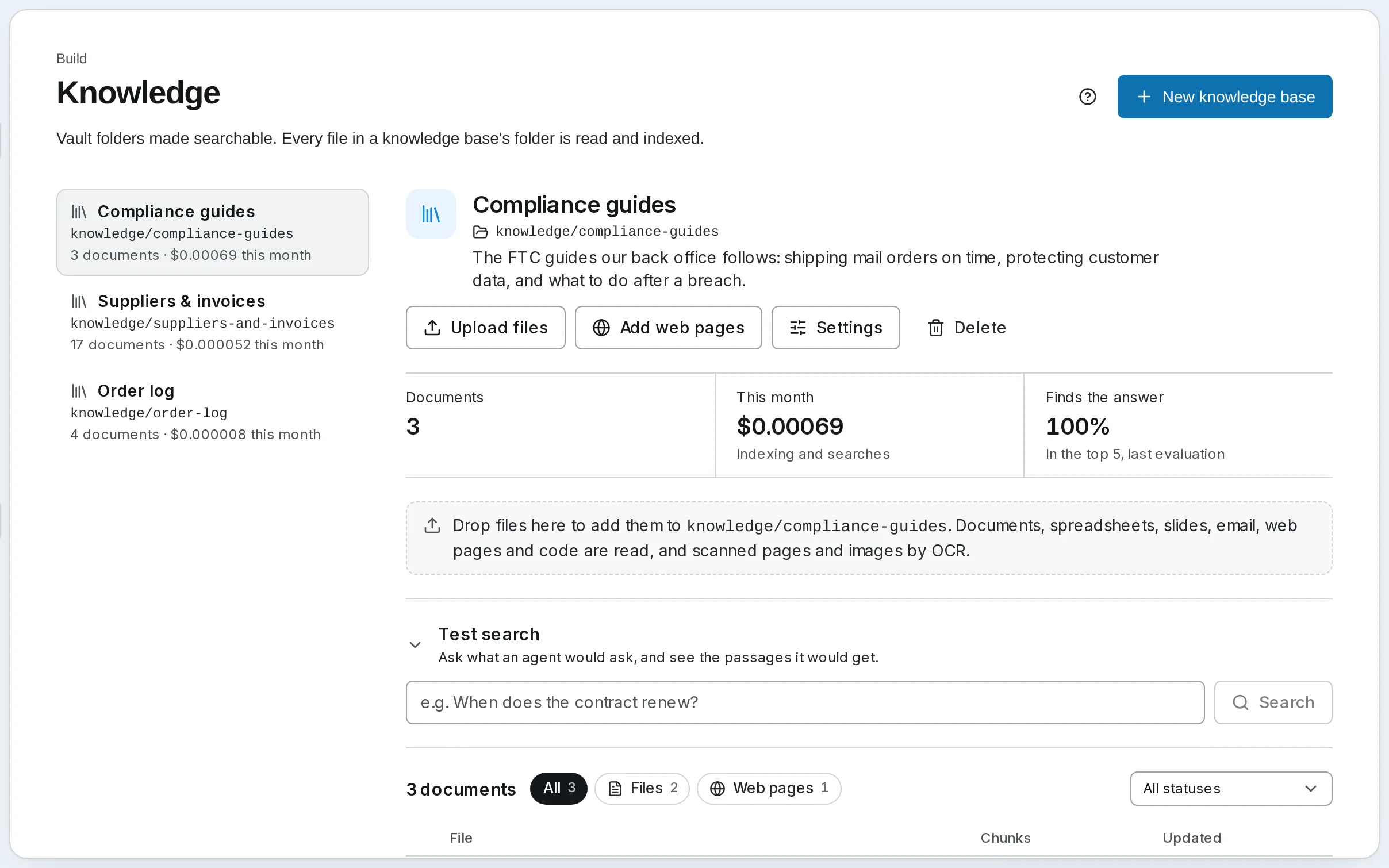
The left column lists the bases, each with its folder and a line such as 12 documents · 1 in progress · 1 failed. Opening one shows its spend this month and, above its documents, Upload files, Add web pages, Settings and Delete.
Below the documents are four sections:
- Web sources — the pages, sitemaps and sites the base fetches; see Adding documents.
- Test search — ask what an agent would ask, and see the passages it would get, with the search's trace; see Search and settings.
- Costs — what the base cost this month, against its budget; see Costs and budgets.
- Evaluate — question sets that measure how well the base finds its answers; see Evaluate.
The page refreshes itself every two seconds while anything is being read or indexed.
Document status
| Status | Meaning |
|---|---|
| Queued | Waiting for its turn — or, on SynapseOrch Cloud, for a provider's rate limit to lift, saying until when |
| Reading | Being parsed, and its scanned pages read where OCR is configured |
| Indexing | Being cut into passages, given contexts, embedded and written to the index |
| Indexed | Searchable |
| Partly indexed | Searchable, with something left out — the reason says what |
| Failed | Not searchable; Retry usually helps — the reason says |
| Skipped | Not read, and retrying will not change that until the file or the limit does |
| Paused | Waiting on money: the base's monthly budget, or on SynapseOrch Cloud an empty model wallet. It goes on by itself when that changes |
| Blocked | A web address that was refused: disallowed by the site's robots.txt, or not a public address |
| Deleting | Leaving the index |
While a document is being read or indexed, its row shows a bar and what it is doing: Embedding · 1,152 of 2,000 passages · about 2 min left. See Progress.
Reasons
A document that is not plainly Indexed says why beside its name. Retry is off for the reasons marked off: retrying cannot change them.
| Reason | What it means | Retry |
|---|---|---|
| Not a file type Synapse reads yet | The format needs something this install lacks — OCR for an image (a self-hosted install has none), LibreOffice for a legacy Office file (read by itself once it is installed) | |
| Larger than the per-file limit | Over 100 MB (knowledge_max_file_mb) | off |
| More pages than the per-file limit | Over 2,000 pages (knowledge_max_file_pages) | off |
| No text in it | Nothing to index | off |
| Excluded | A web page that asks not to be indexed (noindex) | off |
| Monthly budget reached | The base hit its budget. Raise it, or wait for the month to turn | |
| Model wallet can't pay | SynapseOrch Cloud: the month's allowance is spent and the balance is empty. Top the wallet up, and it goes on by itself within the hour | |
| Disallowed by robots.txt | The site asks crawlers not to fetch the page | off |
| Address refused | Not a public address | off |
| Could not be fetched | No answer, or an error from the site. The next crawl tries again | |
| Reading timed out / Too large to read | Reading took longer, or more memory, than allowed. Split the file, or retry when the machine is less busy | |
| Could not be read | The file may be damaged. Re-save it in its program and upload it again | |
| Encrypted | Password-protected. Remove the password and upload it again | off |
| Embedding failed / Writing the index failed / Text recognition failed | A step failed; retrying usually helps | |
| The model writing passages' context failed | Contextual Retrieval's model failed. Contexts already written are kept | |
| The embedding model gave unusable vectors | Check the model | off |
| Some pages were cut | Only some pages were read in time. Retry reads them all | |
| Cut at the size limit | The file holds more than 5,000,000 characters of text; the rest is not searchable. Split the file | |
| Some pages have no text layer | Scanned pages. A self-hosted install has no OCR to read them; on SynapseOrch Cloud, OCR did not read them and Retry reads them again | |
| An attachment was skipped | Part of an email could not be read; the report says which |
The report
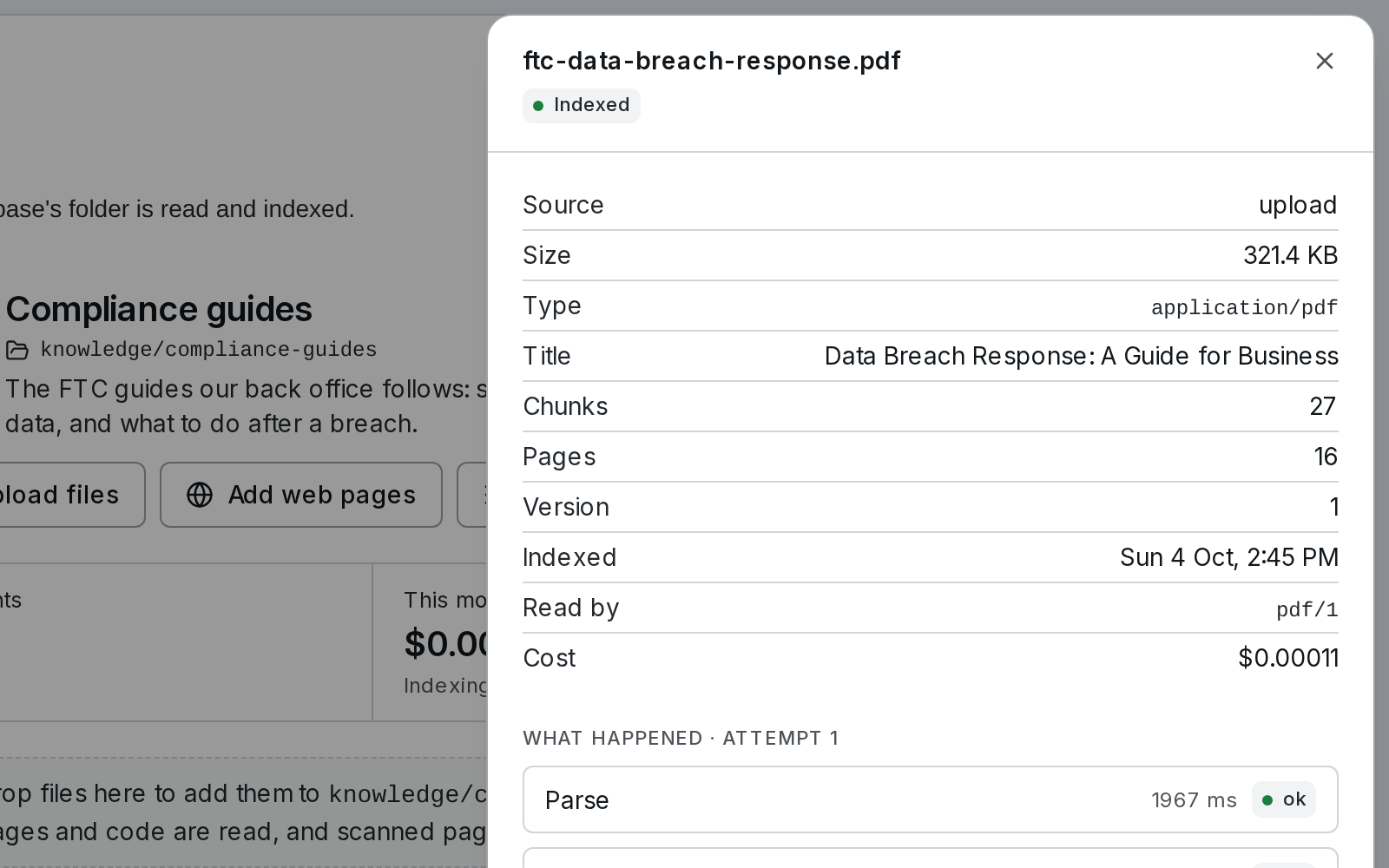 Click a document's name for its report: where it came from, its size, type, title, passages, pages, version, when it was indexed, which reader read it, what it cost, and What happened — each stage of the last attempt (fetch, parse, OCR, sanitize, chunk, enrich, embed, index) with its time and outcome, then any warnings, such as hidden text removed. Retry reads the document again; it is off while the document is working, and for reasons a retry cannot change.
Deleting
Deleting a document deletes its file from the Vault as well — a file left in the folder would only be indexed again. A fetched web page comes back on its source's next crawl unless the source excludes it.
Deleting a base takes its documents out of the index and keeps every file in the Vault. Agents and workflow steps that named it lose it: an agent simply stops searching it, while a Retrieve or Ingest step fails its run until it names another base.
What the API alone changes
The page edits a base's search and index settings, its budget and whether visitors may search it. A few things have no control on the page and are set through the Knowledge API: the name and description, switching a base off ("status": "disabled" — not searched, and refusing uploads, records and web pages), and the base's crawl limits and re-crawl schedule.
Scheduling
Schedules let you run agents or orchestrations automatically on a time-based trigger — either on a fixed interval or a cron expression.
Adding Documents
Upload files, write into the folder, send records, or crawl public web pages — and follow each document as it is read, embedded and indexed.